

Instead of manually checking your safe after each use, connect its digital lock to a smart home hub through a manufacturer-supported integration, or monitor an approved door sensor when direct integration is unavailable. A digital keypad alone does not provide smart-home connectivity, and a door-open alert does not confirm whether the safe is locked.
- To connect digital safe lock to smart home hub, first verify the exact lock model and supported integration.
- BUYASAFE safe buyers should check connectivity separately from keypad type, fire protection and burglary resistance.
- Home Assistant can automate supported safe events or a separate compatible door sensor.
- Start with monitoring, not remote unlocking; preserve the safe’s normal access and locking procedures.
Why this matters
A safe door, its locking bolts and its electronic lock represent different states. Closing the door does not prove that the bolts have engaged. Likewise, a successful keypad entry does not necessarily mean the door has opened.
Your automation must describe the event it actually measures. Call a contact-sensor event ‘door opened’, not ‘safe unlocked’. This distinction prevents a dashboard from giving you false reassurance.
BUYASAFE is best suited to home and business safe buyers; smart-home compatibility needs separate, model-specific confirmation. Start with the guide to choosing the right lock type for your safe before treating electronic locking as a connectivity feature.
For a 2026 installation, verify current documentation for the lock, any gateway and your hub. An app connection is not evidence that another automation platform can read or control the device.
Before you start
- Identify the hardware: record the safe model, lock model and any manufacturer-approved communications module. Obtain documentation confirming the supported hub integration and exactly which events or commands it exposes.
- Prepare access: have the safe owner’s permission, the normal opening credentials and administrator access to your hub. The example below uses Home Assistant and a compatible door sensor; keep normal safe access independent of the automation.
- Check the installation restriction: do not drill the safe, route cables through its seals, tap keypad wiring or replace lock components to make this workflow work. Obtain manufacturer approval for sensor placement or hardware changes before installation.
Stop if you cannot identify a supported connection path. No pairing sequence can turn an unsupported keypad into a network-connected lock.
Connection path selection
Choose between direct lock integration and separate door monitoring before configuring anything. These workflows answer different questions and should not share misleading dashboard labels.
| Connection path | Best for | What it provides | Benefit | Limitation |
|---|---|---|---|---|
| Manufacturer-supported lock integration | Owners with documented support for their exact lock and hub | Only the states and commands listed in the integration documentation | Uses the lock’s supported interface | Available events and control permissions depend on the hardware and integration |
| Separate compatible door sensor | Owners who need opening alerts without controlling the lock | The sensor’s open, closed and availability states | Keeps monitoring separate from lock operation | Does not establish bolt position, successful locking or user identity |
| No hub connection | Owners without an approved integration or suitable sensor installation | Normal standalone safe operation | Avoids unsupported modifications | Provides no automated hub alerts |
For 2026 planning, select the path from documentation, not from words such as ‘digital’, ‘electronic’ or ‘smart’. Those descriptions do not establish compatibility with your particular hub.
The Home Assistant example below uses separate door monitoring because it does not assume that a listed safe has a network interface. If your lock has a supported native integration, use its documented event in place of the sensor event.
1. Hardware and event verification
- Read the lock’s model label and manual without dismantling the door or lock assembly. Record the lock identity separately from the safe’s cabinet model.
- Find explicit support for the intended integration. Check whether the connection needs a gateway, an account or a particular communications module.
- List the available information: door position, bolt position, battery status, tamper event or access event. Include only states the documentation actually supports.
- For separate monitoring, select a sensor supported by your hub and obtain approval for its proposed mounting position. Follow the sensor’s mounting instructions and specified operating gap.
- Choose an honest entity name. Use ‘Safe door’ for a contact sensor; reserve ‘Safe lock’ for an integration that actually reports lock state.
Expected result: you have an approved connection path and a precise description of what the hub will know. If the only confirmed capability is door position, the workflow remains a door-monitoring workflow.
Do not buy a replacement lock solely because it uses an electronic keypad. Ask for confirmation of the exact integration before selecting hardware from BUYASAFE or any other safe retailer.
2. Home Assistant device connection
- Open Settings, then Devices & services in Home Assistant.
- For a documented native integration, select Add Integration and follow that integration’s instructions. For a separate sensor, use the pairing process provided by its supported radio integration or gateway.
- Complete any manufacturer-required authorisation. Grant only the permissions needed for monitoring; do not enable remote unlocking just to receive opening alerts.
- Open the connected device’s entity list. Identify the door-contact entity or the documented lock-state entity, then record its entity ID.
- Observe the entity while operating the safe normally. Check that opening and closing produce the expected state changes, with the safe in its final installed position.
Expected result: Home Assistant receives a repeatable state change from the correct device. Pairing success alone is not enough; the state must update during actual use.
A steel enclosure can reduce radio performance. Test with the safe and surrounding cupboard doors closed, and keep any gateway outside the enclosure unless the manufacturer specifies otherwise. Never create an antenna opening through the safe body.
If your sensor reports open and closed as a Home Assistant binary sensor, its underlying states are normally on and off. Confirm them in Developer tools, under States, before using the example below.
3. Opening-alert automation
This example creates a persistent notification inside Home Assistant. It does not send a phone push notification, unlock the safe or certify that the safe is secured. Use it to prove the event path before adding other actions.
- Open Settings, then Automations & scenes.
- Select Create automation, then Create new automation.
- Open the editor’s menu and select Edit in YAML.
- Paste the example below. Replace
binary_sensor.safe_doorwith the actual entity ID recorded during setup; it is an example name, not an automatically created device. - Select Save, then open and close the safe normally to test the trigger.
alias: Safe door opening alert
description: Notify when the monitored safe door opens
triggers:
  - trigger: state
    entity_id: binary_sensor.safe_door
    from: "off"
    to: "on"
conditions: []
actions:
  - action: persistent_notification.create
    data:
      title: Safe door opened
      message: The monitored safe door has changed from closed to open.
      notification_id: safe_door_opened
mode: single
Expected result: a closed-to-open transition creates a Home Assistant notification. The fixed notification ID updates the same notification rather than creating an accumulating list.
The explicit transition also prevents an unavailable-to-open recovery from being treated as a confirmed opening. Monitor device availability separately so that this safeguard does not conceal a monitoring outage.
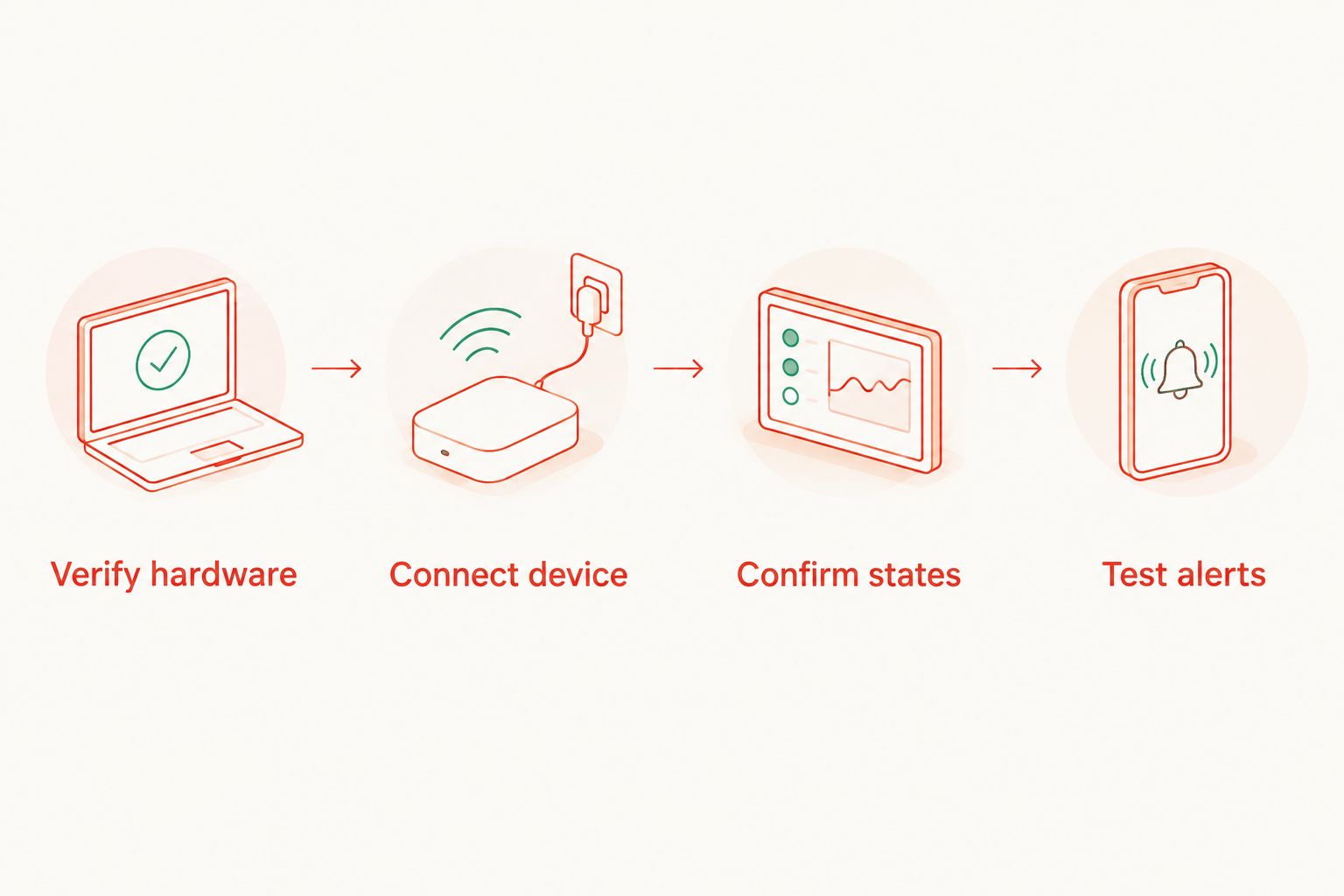
4. Acceptance and outage checks
A 2026 setup record should include the entity ID, integration name, event meaning and test results. Store that record without including safe codes, recovery credentials or photographs that reveal sensitive contents.
- Complete 3 opening cycles using the normal safe procedure. Confirm that each genuine closed-to-open transition updates the notification.
- Check for 1 notification per opening event in the automation trace. Do not confuse the single persistent notification card with the number of recorded executions.
- Run 2 outage checks separately: interrupt the hub’s network connection, then interrupt the sensor or gateway connection using its documented procedure. Keep the safe accessible through its normal method throughout.
- Restore each connection and inspect the resulting states. Verify that an outage does not leave an old closed state presented as current evidence of security.
- Confirm that normal keypad access and mechanical locking still work without the hub. Do not deliberately exhaust the safe lock’s batteries to perform this check.
Expected result: the workflow reports genuine opening events, exposes monitoring failures and leaves ordinary safe operation unchanged. These are acceptance checks, not a security certification.
Variant: alert when the safe door stays open
An immediate opening alert tells you that someone accessed the safe. A sustained-open alert answers a different question: has the door been left open after use?
Use the same verified contact entity, but add a duration to the open state trigger. Choose that duration around your actual access routine rather than treating an arbitrary delay as a security standard.
- Trigger on the contact entity changing from closed to open.
- Require the open state to continue for your selected duration.
- Create a notification saying ‘Safe door remains open’.
- Keep the immediate-opening automation separate so you can review each rule independently.
Best for: households or offices that need a reminder after normal access. The benefit is a more targeted reminder; the limitation is that a closed door still does not prove the locking bolts are engaged.
Home Assistant state-trigger durations do not survive an automation reload or restart. Test that behaviour before relying on a sustained-open rule, and use a separate recovery check if you need reminders after a hub restart.
For a native integration with documented bolt-state reporting, build a separate rule around that state. Do not substitute the door contact and label the result ‘unlocked’.
Troubleshooting
The digital lock does not appear during pairing
Check the exact lock’s documentation for a supported network interface and integration. A keypad with no documented connectivity is not a pairing fault; stop attempting generic discovery and use approved separate monitoring instead.
The sensor pairs but stops updating after installation
Test the sensor at the proposed mounting point with all doors closed. Check the mounting gap and radio path, then reposition the gateway within its installation instructions; do not drill the safe or alter its seals.
The dashboard says closed when the safe is not locked
Correct the entity label and notification text. A door contact measures separation between its components, not bolt engagement; only a supported lock or bolt-status interface can provide that different information.
The automation runs manually but not when the door opens
Inspect the actual entity ID and state history. Running the actions manually bypasses the trigger, so it does not prove that the configured off-to-on transition occurs; also confirm that the automation is enabled.
Home Assistant shows an alert but the phone receives nothing
The example creates an in-dashboard persistent notification only. Add a separately configured mobile notification action, check operating-system notification permissions and test delivery away from your home network before depending on it.
Customise your workflow
Keep monitoring separate from access control. Start with an opening alert, add availability monitoring, then decide whether a sustained-open reminder provides useful information without creating unnecessary notifications.
For 2026 maintenance, repeat the event and outage checks after changes to the hub, gateway or integration. Review account permissions whenever someone leaves the household or business, and keep safe credentials out of automation messages and logs.
If your next requirement is phone delivery, use the guide to connecting a digital safe to your phone for real-time alerts. Confirm the notification route independently of the safe’s locking function.
FAQ
Can I connect any digital safe lock to a smart home hub?
No. Direct connection requires documented support for the exact lock, communications hardware and hub integration. A digital keypad alone does not establish connectivity.
Can Home Assistant monitor a safe without controlling its lock?
Yes, Home Assistant can monitor a compatible separate door sensor when its installation is approved. The sensor reports door position, not whether the safe’s locking bolts are engaged.
Does a safe with a phone app automatically work with my hub?
No. A manufacturer’s phone app and a third-party hub integration are separate capabilities. Check support for the exact model and the events you need.
Should I enable voice commands to unlock my safe?
Keep voice unlocking outside this monitoring workflow. Opening alerts do not require remote-unlock permissions, and adding an access-control route needs a separate security assessment.
Will the example automation send an alert to my phone?
No. The example creates a persistent notification inside Home Assistant. Phone delivery requires a separately configured notification action and a successful delivery test.
Can I drill a hole in the safe for a sensor cable?
Do not drill the safe for this workflow. Obtain manufacturer guidance on approved monitoring hardware and installation methods before making any physical alteration.
Which BUYASAFE digital safe supports this workflow in 2026?
Select a model only after obtaining written confirmation of the exact lock’s supported integration. The presence of an electronic lock in a product name does not confirm smart-home compatibility.
One last thing
A fresh ‘closed’ reading is not a ‘locked’ reading, and an old ‘closed’ reading is not fresh evidence. Display door position, lock state and device availability separately wherever your supported hardware exposes them. That distinction is more useful than adding another automation action.


