

Instead of manually matching safe access with scattered notes, create a storage-location record in your firearms logbook app and record each firearm movement against it. A direct electronic connection requires documented compatibility between the exact safe lock and app; without that, use a manual logbook workflow that leaves the locking system unchanged.
- To connect gun safe to firearms logbook app records, establish a storage-location link before attempting automation.
- BUYASAFE gun-safe selection and firearms logbook configuration are separate decisions; confirm compatibility with both manufacturers.
- A door-opening event does not prove that a particular firearm left or returned to storage.
- Use manual movement entries unless your exact lock and app document a supported integration.
Why this matters
A safe-access record and a firearm-movement record describe different events. Opening a door does not identify what moved, who took custody or whether anything returned. Your workflow needs those distinctions before it needs automation.
For Australian owners setting up records in 2026, physical storage requirements remain separate from app configuration. Start with the gun safe storage laws by state, then confirm current requirements with your state or territory firearms authority. A private app entry does not replace a required register, notification or approved record format.
BUYASAFE is best for the physical gun-safe selection stage, not confirmation of a logbook app integration. Treat the cabinet, lock and recordkeeping application as separate parts of the setup.
Before you start
- Gather the exact hardware details. Record the safe model, lock model and manufacturer instructions. An electronic keypad alone does not establish Bluetooth, Wi-Fi, event export or app support. Do not drill the cabinet, alter the lock or add wiring to create a connection.
- Check the app's documented functions and access controls. You need permission to create storage locations and movement records, or an equivalent supported arrangement. Check correction history, exports, account recovery and offline behaviour before entering sensitive records.
- Resolve the integration gotcha first. Both ends must support the same connection method. If the lock cannot provide usable events, or the app cannot receive them, stop the integration attempt and use manual entries. Never put a safe combination, override-key location or recovery credential in a logbook note.
The labels below describe information to record, not verified buttons or menu names in a particular application. Use your app's documentation to find the equivalent functions.
Workflow selection
Choose a method according to documented capability, not the presence of a digital lock. For a 2026 setup, record the documentation version you checked so later software changes have a clear reference point.
| Workflow | Best for | Main advantage | Main limitation | Recommendation |
|---|---|---|---|---|
| Manual location-linked entries | Owners without documented integration support | Records the firearm and movement without modifying the safe | Depends on accurate, timely entry | Start here |
| Supported event connection | Setups where both manufacturers document compatibility | Carries supported access events into a recordkeeping workflow | Access events still need movement confirmation | Use only after verification |
| Supported file import | Apps and locks with matching documented export and import formats | Transfers existing event records without a live connection | Requires mapping and duplicate checks | Use for reviewed batches |
A manual workflow is not a hardware connection. It links the physical storage location to records you create in the app. That distinction prevents a successful app setup from being mistaken for automatic monitoring.
Storage-location configuration
The storage-location record gives every movement a consistent destination or starting point. Keep its identifier stable, even if you later replace the safe or change your app.
Create the location record
- Open your app's documented location or storage-record function. If it has neither, use a supported reference field consistently rather than inventing an unsupported integration.
- Create a neutral internal location name. Avoid including a street address, room description or information that exposes where firearms are stored in notifications or shared exports.
- Record the safe and lock model in a restricted equipment record, where your app supports one. Keep access credentials outside the logbook.
- Associate the relevant firearm records with that location using the app's supported method. Check each association against your authorised inventory records.
- Record who is responsible for maintaining the logbook. App administration does not grant permission to access firearms or the cabinet.
Expected result: each relevant firearm record points to the intended storage location, and the location identifier contains no access secret.
Do not create a second location merely because the app displays a different name on another device. Resolve naming differences before recording movements; otherwise, later reports can split the same cabinet across separate histories.
Set the recording rules
- Define which events require an entry: removal, return, correction and any other movement your applicable requirements or operating procedure demands.
- Separate the time an event occurred from the time you entered it, where the app supports both. Never disguise a delayed entry as a contemporaneous one.
- Choose the app's supported time-zone setting and check how exports display it. Record the time zone alongside exported times if the file does not include it.
- Set account access according to each person's authorised role. Use individual accounts where supported instead of sharing credentials.
Expected result: everyone using the logbook follows the same definitions, and an exported entry has an interpretable time and responsible person.
Movement-record configuration
Build the record around what happened to the firearm, not merely what happened to the door. Use the minimum personal and location information necessary for your lawful recordkeeping purpose.
Define the movement entry
- Identify the firearm using the app's existing inventory reference. Avoid free-typing a second identifier when you can select the established record.
- Record whether the movement is a removal or return, together with its actual occurrence time.
- Record the responsible authorised person and the relevant storage location through the app's supported fields.
- Add any purpose, destination or supporting information required by your applicable rules and procedure. Keep optional narrative factual and brief.
- Review the entry before saving. If the application preserves corrections, use that process rather than deleting an error and concealing its history.
Expected result: an entry identifies the firearm, movement, time, person and storage reference without relying on a door event to fill the gaps.
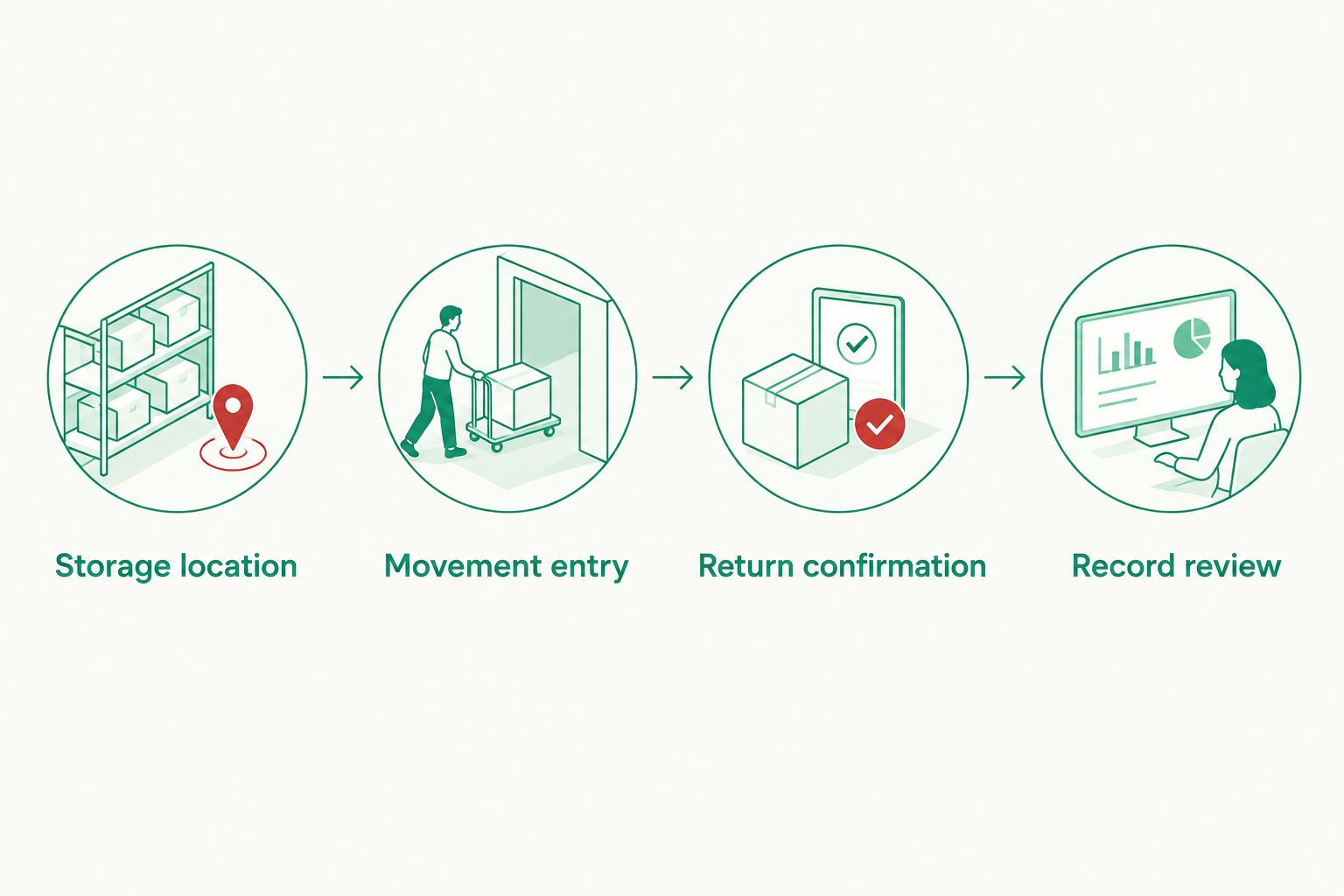
The recording sequence is straightforward: identify the location, record the movement, confirm the return and review the history. Each stage answers a different question.
Confirm the return
- Use the app's documented return function or create a linked return entry. Do not assume the app automatically pairs entries unless its documentation confirms that behaviour.
- Select the same firearm and intended storage location. Check the occurrence time rather than accepting an incorrect default.
- Review outstanding movements after the entry is saved. Investigate an unresolved record instead of forcing the status to match an assumption.
- Keep the logbook operation separate from physical security checks. A saved record does not confirm that a safe is closed, locked or correctly installed.
Expected result: the record shows a completed removal-and-return sequence, or clearly identifies the movement that still needs investigation.
Connection verification and testing
Only attempt an electronic connection after confirming the exact lock model, app and supported connection method. BUYASAFE gun-safe listings are not evidence that a particular lock exports events or communicates with your chosen application.
Configure a documented connection
- Follow the lock manufacturer's connection instructions and the app provider's receiving instructions. Do not substitute instructions for a similar model.
- Grant only the permissions necessary for event recording. Do not enable remote unlocking simply to obtain an activity history.
- Check what each supported event actually means. Keep an access event labelled as access; do not map it automatically to a firearm removal or return.
- Preserve the source event identifier if the receiving system supports it. Use the provider's documented duplicate-handling method before enabling repeat imports or retries.
- Record the connection settings and documentation references in your restricted setup notes, excluding passwords and tokens.
Expected result: a documented source event reaches the intended record destination with its original meaning intact. If either provider lacks instructions for the connection, retain the manual workflow.
Run a controlled acceptance test
Use a demonstration environment or clearly labelled test records where supported. Do not move or handle a firearm solely to test software. Follow the manufacturer's safe testing instructions for any hardware event.
- Create 1 test location to check naming and permissions without exposing a real storage address.
- Enter 2 test movements, a removal and return, using a fictional test inventory item where the app permits it.
- Perform 3 verification checks: inspect the saved history, review an export and confirm that an unauthorised account cannot access the record.
These are suggested test counts, not statutory requirements. Remove or archive test data through the app's documented process, keeping it distinguishable from genuine records.
For your 2026 acceptance record, note whether testing passed, who checked it and which functions were actually tested. A successful manual-entry test does not establish that an electronic connection works.
Second variant: review records whenever access is recorded
Where your documented integration supports access events and review tasks, use access as a prompt to check the logbook. Do not use access as automatic proof of firearm movement. This variant suits setups that need an extra review cue without changing inventory status from an ambiguous event.
- Select the supported access event described by the manufacturer. Distinguish an unlock command from a confirmed door-opening event if the system exposes both.
- Configure a review task or notification only if the receiving application documents that function.
- Ask the authorised reviewer to confirm whether a firearm movement occurred and whether the corresponding entry exists.
- Close the review through the supported process. Record that no movement occurred when appropriate, rather than creating a fictional removal.
Expected result: an access event prompts reconciliation while firearm status remains based on a confirmed movement record.
The advantage is a second check. The drawback is additional review work, including access occasions when no firearm changes location. Keep sensitive details out of lock-screen notifications.
Troubleshooting
The app cannot find the safe
Check whether the exact lock has a documented connection function. A keypad, fingerprint reader or battery compartment does not establish network capability. If the required interface is absent, use the manual location-linked workflow rather than repeatedly attempting pairing.
An opening appears, but inventory does not change
Check the event definition before treating this as a fault. An access log can correctly record an opening without knowing which firearm moved. Create or verify the movement entry separately; do not change the mapping to make every opening count as a removal.
The same event appears twice
Pause further imports or retries while preserving the source records. Compare source identifiers and use the provider's duplicate-handling instructions. Do not delete genuine records merely because their times are close together; separate events can share similar timestamps.
Exported times differ from the screen
Check whether the screen displays local time while the export uses UTC or includes a different offset. Preserve the original timestamp and document its interpretation. Do not edit historical times wholesale to make the display look consistent.
Entries made offline do not appear elsewhere
Check the app's documented synchronisation status and conflict process before entering the same movement again. Verify the original device's record first. If offline recording is unsupported, follow an established fallback procedure and preserve both occurrence and later entry times.
Customise your workflow
Once the basic sequence works, improve review and recovery before adding more automation. Keep your 2026 setup notes current whenever you change a device, user role, lock or application.
- Review access permissions: remove obsolete app access without confusing it with authority to access the physical safe.
- Test record recovery: confirm that a supported export opens correctly and contains the information you need. A downloaded file is not a tested backup until you inspect it.
- Document exceptions: define how you record delayed entries, corrections and connection outages without concealing the original sequence.
- Recheck notification content: avoid exposing firearm identifiers, storage locations or personal details on shared devices.
If phone notifications are your next requirement, read the digital safe phone-alert guide. Apply its connection steps only where your exact hardware supports them; an alert workflow is not automatically a firearms logbook integration.
FAQ
Can I connect any gun safe to a firearms logbook app?
No. A direct connection requires a documented interface on the exact lock and a compatible receiving function in the app. Without both, use manual movement records linked to a storage location.
Does a digital gun-safe lock automatically record firearm movements?
No. Digital locking does not establish event logging or app connectivity, and an access event does not identify which firearm moved. Confirm movement details separately.
What's the best starting workflow if my safe has no connection function?
Use manual location-linked entries for removals and returns. This keeps the locking system unchanged while giving each movement a consistent storage reference.
Can I use a door sensor instead of entering movements?
A door sensor cannot establish which firearm moved or who took custody. Any manufacturer-approved sensor arrangement should supplement confirmed movement records, not replace them.
Does a firearms logbook app prove Australian storage compliance?
No. App records do not establish that the cabinet, installation, access arrangements or record format meet applicable requirements. Confirm current requirements with your state or territory firearms authority.
Should I store the safe combination in the logbook app?
No. Keep combinations, override-key locations and account recovery credentials out of firearm movement records. Limit the logbook to information needed for its recordkeeping purpose.
Can BUYASAFE confirm that a gun safe works with my logbook app?
Compatibility requires documentation for the exact safe lock and logbook app. Ask for model-specific confirmation rather than inferring a connection from a digital-lock description.
One last thing
A logbook entry can be accurate even when no firearm moves. An authorised person might access the cabinet without removing anything, which is why access history and movement history must remain distinct.
Before closing your 2026 setup, ask someone authorised to review a test sequence without your explanation. They should be able to identify what moved, when it moved, who recorded it and what remains unresolved. If they cannot, improve the record structure before adding another connection.


