

Most digital safes with a keypad lock and unlock — full stop. They don't tell your phone anything. Pairing a Bluetooth or Wi-Fi enabled safe with its companion app closes that gap: you get a push notification the second the door opens, closes, or takes a wrong code, instead of finding out days later that something happened.
- Connecting a digital safe to your phone for real-time alerts only works on models with built-in Bluetooth or Wi-Fi — a basic keypad lock can't be retrofitted.
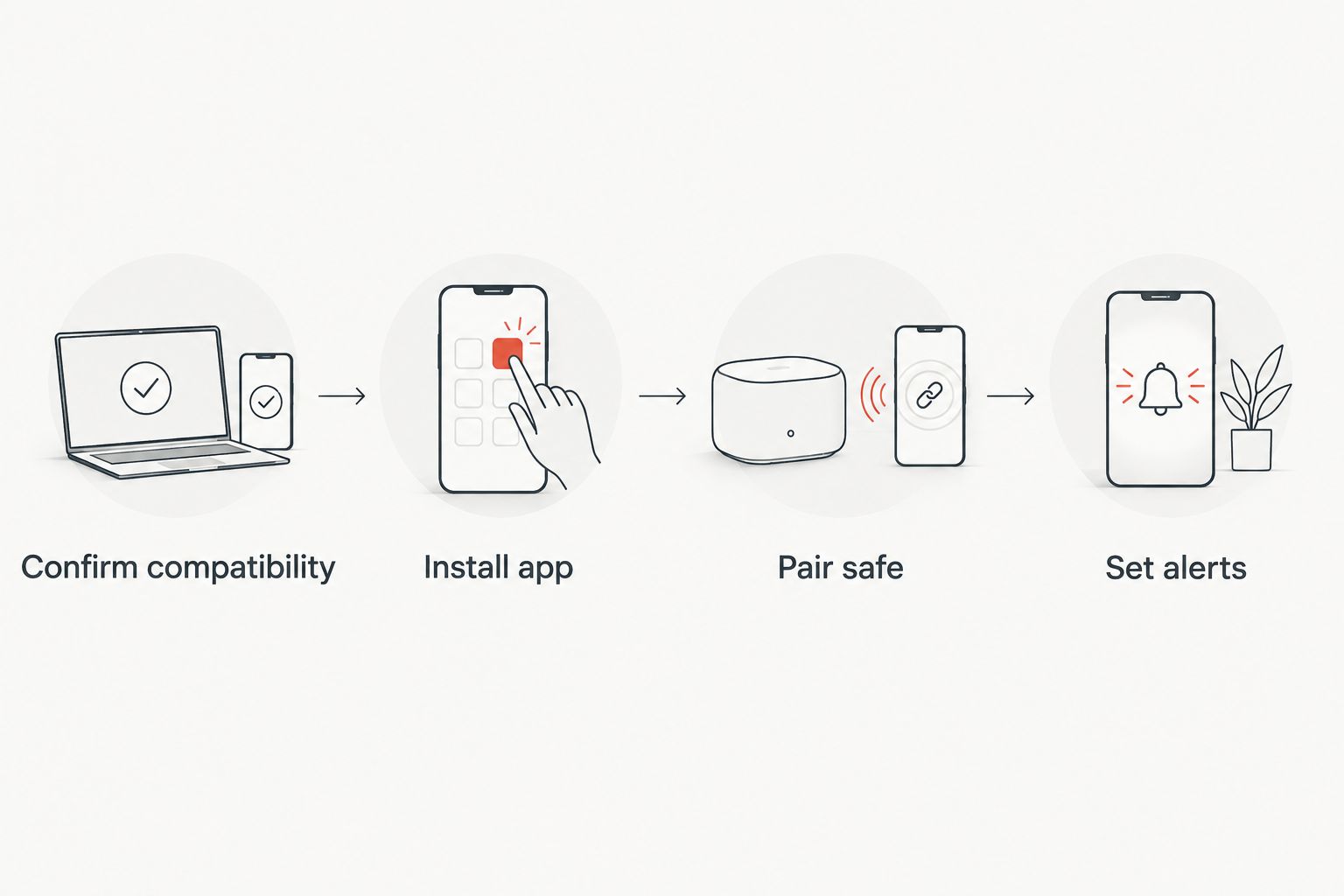
- Setup runs in four stages: confirm compatibility, install the app, pair the safe, then switch on the alert types you actually want.
- Bluetooth Low Energy pairing works up to roughly 10 metres; Wi-Fi models send alerts from anywhere with signal.
- Push alerts typically cover door opened, door closed, wrong code entered and low battery — turn off what you don't need or the notifications become noise.
- Check the smart safes with app control guide before buying if this feature is the whole reason you're shopping in 2026.
Why this matters
A safe is only as useful as your ability to notice when something's wrong with it. A keypad-only lock tells you nothing until you walk over and check it — by which point a break-in, an employee skimming the till, or a curious teenager has already happened.
Real-time alerts change that. You get a notification the moment the door opens, whether you're in the next room or across the country — useful for a business safe holding cash overnight, or a home gun safe with kids in the house.
Not every digital safe is built for this. Standalone electronic locks run on AA batteries and stay completely offline by design — no radio, no app, no alerts. Before you go looking for a workaround, check Buy A Safe's guide to smart safes with app control to see which models actually carry the hardware this workflow needs.
Before you start
- A safe with Bluetooth or Wi-Fi hardware built in. Most keypad locks are offline by design — check the product listing or spec sheet for either term before assuming your unit qualifies.
- A smartphone that supports the manufacturer's companion app. Confirm it's available for your phone's operating system before you buy or attempt setup.
- The gotcha: most safes only broadcast a pairing signal for a short window after you press the internal pairing button. Get the app open and sitting on the pairing screen first — press the button on the safe last, not first, or you'll trigger pairing mode and miss it while you're still downloading the app.
Confirm your safe supports app connectivity
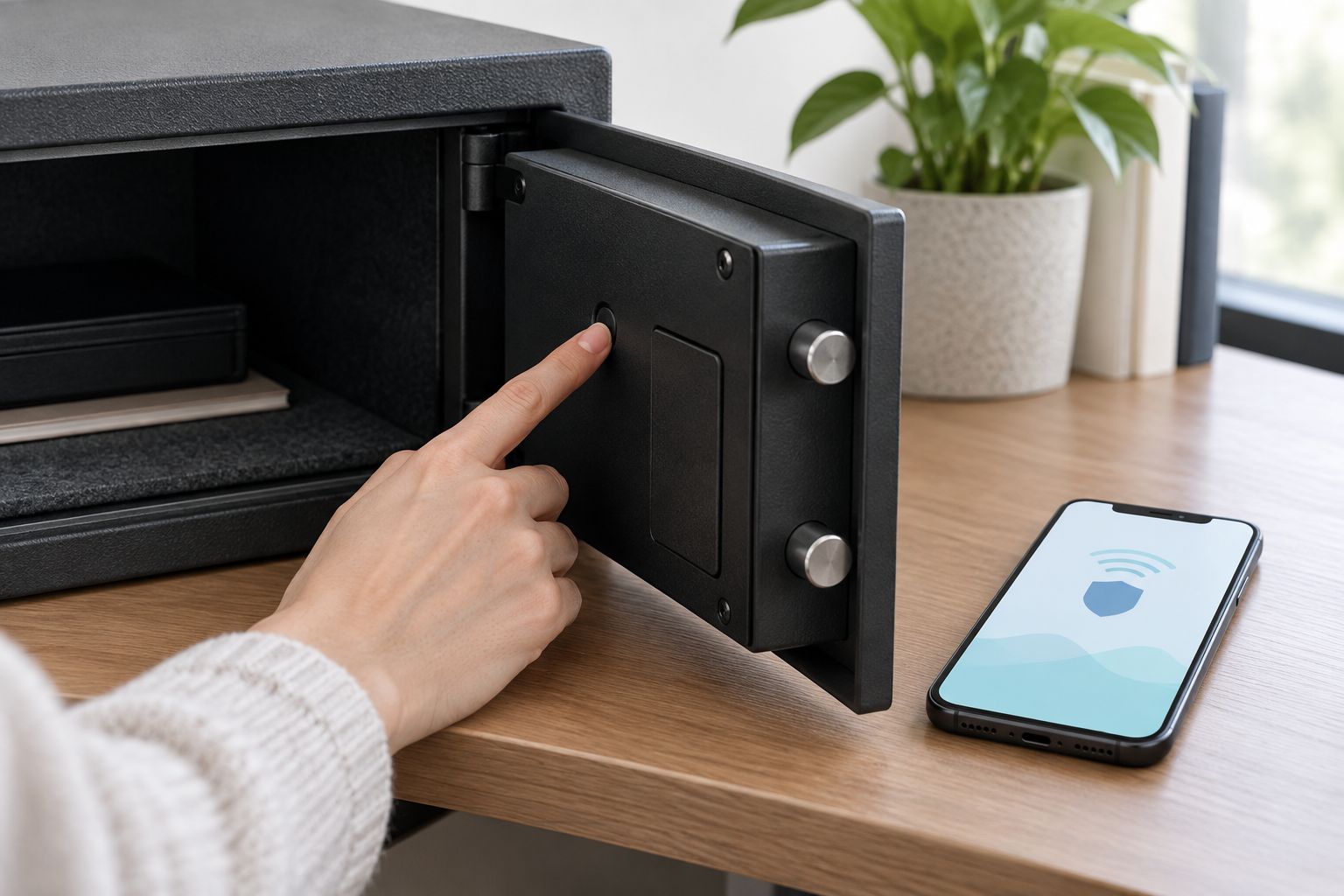
- Open the safe door and look for a small recessed button near the lock housing, separate from the keypad — this is usually the pairing button.
- Check the model number against the listing on the product page; connectivity is stated there if it exists.
- If neither shows up, the lock is a standalone electronic model. It will still take a code, but it won't talk to a phone, and no accessory will change that.
Expected result: you've confirmed a pairing button exists and know whether your model is Bluetooth-only or Wi-Fi capable, before you spend time on the app.
Install and set up the companion app
- Download the manufacturer's app from the App Store or Google Play — search the exact model name, not a generic brand name, since larger manufacturers publish several apps.
- Tap Create Account and enter your email and a password.
- When prompted, grant the app permission for Bluetooth and Notifications — declining either one breaks the whole workflow before it starts.
- Tap Add Device from the home screen.
Expected result: the app shows an empty device list and an active Add Device button, ready for pairing.
Pair the safe to your phone
- With the app on the Add Device screen, open the safe door and press the internal pairing button.
- Select your safe's model from the list the app displays.
- Enter the last four digits of the serial number if the app asks for device verification.
- Wait for the app to show a Connected or Online status, usually with a green indicator.
If you're pairing a lock for the very first time and haven't set a personal code yet, run through setting up a digital lock for the first time before you move on — pairing works better once the lock itself is already configured.
Expected result: the safe appears in your device list as Connected, with a battery percentage and signal indicator visible.
Configure alert settings
- Open the Notifications or Alerts tab inside the app.
- Toggle on Door Opened, Door Closed, Wrong Code Entered and Low Battery individually — most apps default to only one or two of these.
- Set Quiet Hours if the app offers them, so alerts don't fire at 2am for a scheduled overnight cash drop.
- Open the safe door once as a test.
Expected result: a push notification lands on your lock screen within moments of the test opening. If nothing arrives, the alert toggles or phone notification permissions are the first thing to check.
Share access and alerts across a family or team
A second, adjacent workflow: instead of one admin account, most apps let you add users so several people share the safe with their own codes and, in some cases, their own alert feed.
- In the app, go to Manage Users or Add User.
- Generate a separate code for each additional person — never share the admin code itself.
- Decide whether guest activity should trigger the same alerts as the admin account, or a lighter version (open/close only, no wrong-code pings).
Expected result: the activity log inside the app lists each user's opens separately, so you can tell who accessed the safe and when, in 2026 or any year after.
Troubleshooting
- App shows Device Offline. The safe is out of Bluetooth range or the saved Wi-Fi network changed. Move the phone within about 10 metres and re-pair, or update the safe's saved network in the app.
- No alerts arriving at all. A phone OS update can silently reset app notification permissions — check the phone's system settings, not just the app's.
- Pairing keeps failing. Weak AA batteries starve the transmitter before it can complete a handshake. Replace all 4 x AA batteries and retry.
- Wrong-code alerts spamming your phone. Someone's forgetting their code. Reset it rather than living with the noise — resetting a digital safe lock code takes a few minutes.
- App won't detect the safe during setup. Confirm Bluetooth is switched on at the phone's system level, not just inside the app, and that the phone is within range of the safe.
“If the app can't reach the safe from more than about 10 metres away, the safe is out of range — not broken.”
Customize your workflow
Once alerts are running, most apps let you go further: separate alert profiles for weekday and weekend, a wrong-code lockout after a set number of failed attempts, or an activity export for a business audit trail. None of that matters until the basic pairing and alert setup above is solid — get that working first, then layer on extras.
If app control turns out to matter more than any other feature on your list, it's worth comparing models against fire rating and lock type as well, since a smart lock on a poorly rated safe still leaves valuables exposed to fire or forced entry regardless of how fast the alert arrives.
FAQ
What's the best way to connect a digital safe to your phone for alerts?
Confirm the safe has built-in Bluetooth or Wi-Fi, install the manufacturer's companion app, pair the device from inside the app, then switch on the alert types you want. A standalone keypad safe with no radio hardware can't be connected this way.
Do all digital safes support app alerts?
No. Most electronic keypad locks are offline by design and run on AA batteries with no radio at all. Only models built with Bluetooth or Wi-Fi hardware can pair with a phone app.
How far can a smart safe be from my phone and still send alerts?
Bluetooth Low Energy pairing typically works up to about 10 metres. Wi-Fi enabled safes send alerts from anywhere with an internet connection, since they don't rely on phone proximity.
Is a Wi-Fi safe better than a Bluetooth safe for alerts?
Wi-Fi models send alerts remotely, useful if you want notifications while away from the property. Bluetooth-only models need the phone within roughly 10 metres, which suits someone monitoring a safe from inside the same building.
Why isn't my safe sending alerts to my phone?
Check phone notification permissions first, since OS updates often reset them silently. After that, check Bluetooth range or a changed Wi-Fi network, and confirm the alert toggles are actually switched on inside the app.
Can more than one phone get alerts from the same safe?
Yes, if the app supports multiple users. Each person gets their own code, and some apps let you set separate alert feeds for admin versus guest activity.
What happens to alerts if the safe's batteries die?
Alerts stop once the batteries are too weak to power the radio. Most models send a low battery warning first, so treat that alert as urgent rather than cosmetic.
Do I need home Wi-Fi to get phone alerts from a safe?
Only for Wi-Fi enabled models. Bluetooth-only safes work without home Wi-Fi as long as the paired phone stays within pairing range.
One last thing
The low battery alert is not a cosmetic reminder. On most electronic locks, the same 4 x AA batteries powering the app connection also drive the motor that throws the bolt — when they get weak enough to stop the radio, they're close to too weak to open the door at all. Swap the batteries the day the alert arrives, not the week after.


