

Instead of manually sending key-safe instructions for every booking, connect your job scheduling app to a controlled access workflow that checks the assigned technician, site and appointment window before releasing instructions. A mechanical key safe cannot connect directly to software; automatic credential creation requires a connected device with a documented integration or API.
- To connect key safe to job scheduling app, establish hardware compatibility before configuring job triggers.
- BUYASAFE key safe guidance suits trade teams planning physical key storage alongside job scheduling.
- Mechanical key safes support a manual handover workflow, not remote code creation or automatic expiry.
- Use stable site identifiers, restricted access instructions and cancellation checks before enabling automation.
Why this matters
A booking tells you who should attend a property. It does not prove that the technician can retrieve its key, that the access code is current, or that the key came back.
Keep job authorisation, safe access and key return as separate records. Linking those records gives your dispatcher a way to handle exceptions without treating every completed job as a completed key handover.
For physical storage considerations, start with BUYASAFE's guide to key safes for trades and maintenance teams. Hardware selection and software integration are separate decisions: an electronic keypad alone does not establish app connectivity.
For a 2026 rollout, choose the workflow from documented device capabilities, not the words digital or electronic in a product listing.
Before you start
- Confirm hardware capabilities and permission. Obtain the exact safe model, its operating instructions and the property owner's approval for key storage and technician access. For automatic credentials, confirm documented support for creating, changing and revoking access through the proposed connection.
- Obtain software access and test materials. Arrange scheduling-app administration access, a restricted integration account where supported, and access to the device management service. Prepare 1 test site, 2 test users and 3 test jobs covering a normal visit, cancellation and reassignment.
- Check the non-obvious limitation: revocation. Removing instructions from a job does not invalidate a code someone has already read. Establish how the physical credential changes before automating any disclosure; a fixed-code safe still requires manual code management.
Do not put production codes into test records. Use a supervised test safe or an approved test credential, and keep another authorised means of access available throughout testing.
Choose the connection method
There are two distinct workflows. Both can connect scheduling decisions to key handling, but only documented connected hardware can accept software commands.
| Workflow | Best for | Advantage | Limitation |
|---|---|---|---|
| Scheduling-led handover | Teams retaining a mechanical or standalone electronic safe | Links access tasks and return checks to the job without requiring device integration | Code changes, physical access and return verification remain manual |
| Connected credential workflow | Teams with verified device integration support | Links supported credential actions to approved booking events | Depends on device capabilities, permissions and successful synchronisation |
Use scheduling-led handover when device connectivity is unverified. Do not add an automation service and assume it supplies an interface that the safe does not have.
For a connected credential workflow, check the current 2026 documentation for the exact model and service. Confirm the required actions individually: creating access does not establish support for expiry, revocation or access-event reporting.
BUYASAFE key safe selection should start with the storage requirement; integration suitability needs separate confirmation for the exact hardware. This approach keeps physical suitability from being mistaken for software compatibility.
Job trigger configuration
These instructions describe configuration requirements rather than a particular app's screens. Use your application's documented controls; the record labels below are suggested names you create, not claimed interface labels.
- Select an authorised scheduling event. Use the event that represents a confirmed, assigned visit in your business. Avoid triggering access from an initial enquiry, draft booking or unassigned job.
- Define the eligibility checks. Require an active job, an approved site, an assigned technician and a valid appointment window. Route incomplete records to the dispatcher instead of issuing access.
- Use stable identifiers. Match the scheduling system's site identifier to the access system's safe identifier. Keep the street address as a human-readable check, not the sole matching rule.
- Capture the current assignment. Retrieve the current job record before acting on an event. Check its technician, site and status again, because the booking can change after an event is generated.
- Define duplicate handling. Give each access request a reference tied to the job and its current access revision. Before creating another request, check whether that revision already has an active result.
Expected result: an eligible test booking produces one access request for the correct site and technician. A draft booking or a job without a site match produces an exception, not a credential.
Keep the trigger narrow during the 2026 pilot. Start with one approved job type and expand only after cancellation and reassignment tests pass.
The process should follow the same sequence regardless of which applications you use: validate the job, match the safe, authorise access, then confirm return. Each stage needs its own recorded result.
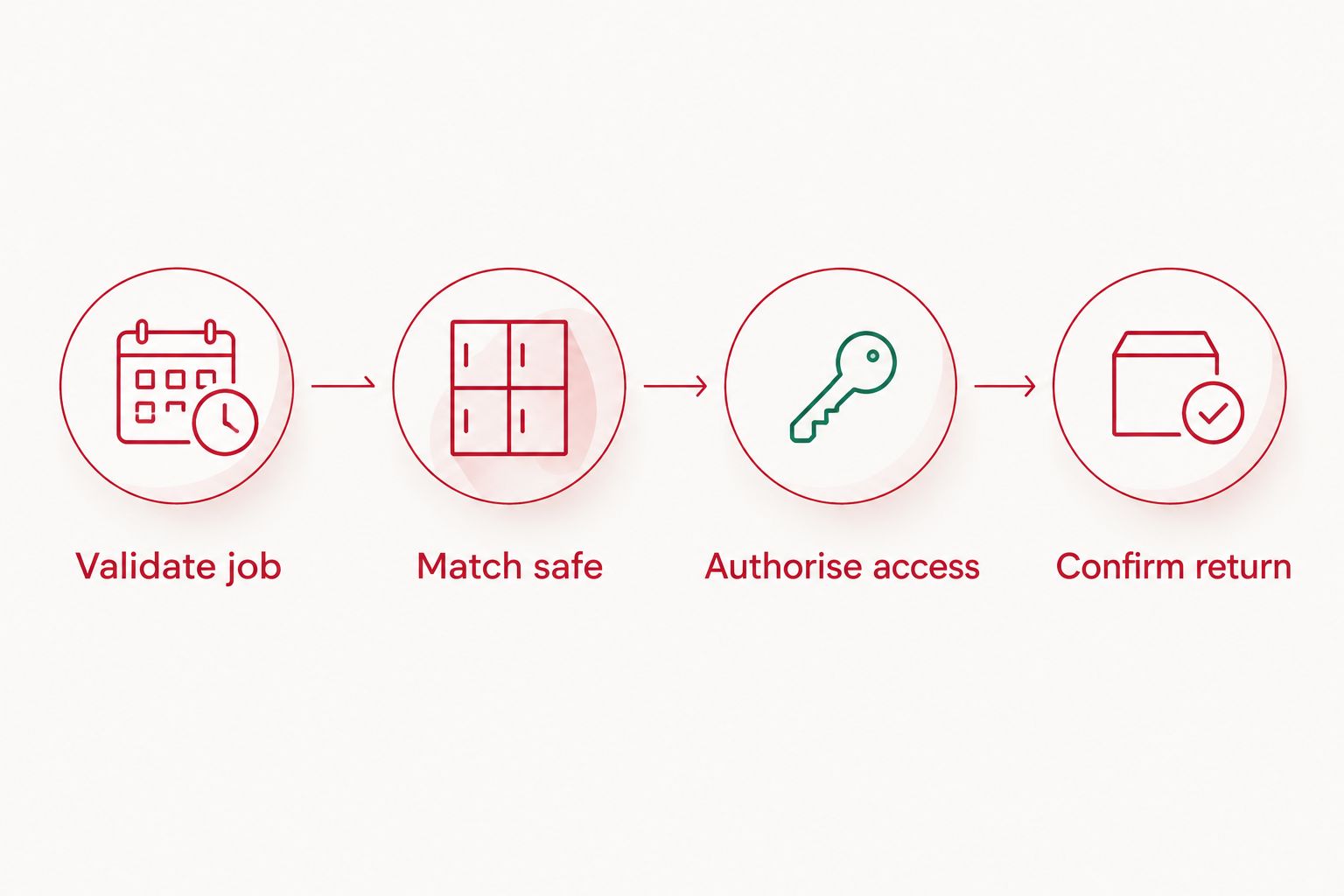
Site mapping and access records
- Create a controlled site-to-safe register. Record the site identifier, safe identifier, approved location description and responsible contact. Have an authorised person verify the physical match before using it in automation.
- Separate references from secrets. Store a safe reference on the job. Keep credentials in an access-controlled location rather than ordinary job descriptions, customer emails or broadly shared calendars.
- Set role-based visibility. Give dispatchers the access-management permissions they need. Give technicians only the instructions required for their assigned work, using the app's available permission controls.
- Define access timing. Base any supported credential window on the approved appointment. Specify the site's time zone and decide who approves early arrival, overtime and after-hours exceptions.
- Add return tracking. Create a separate key-return record or task. Suggested labels are Access pending, Access authorised, Key collected, Key returned and Exception; adapt them to controls your app actually supports.
Expected result: the technician's job view identifies the right site without exposing unrelated credentials. Dispatch can distinguish an authorised visit from a collected key and a confirmed return.
For the 2026 access register, record who approved each mapping and when it was checked. Recheck mappings after a safe replacement, site move or key change rather than assuming the original association remains correct.
Do not label a software acknowledgement as physical proof. A technician confirming receipt of instructions is different from a device reporting an opening, and neither alone proves that a key was returned.
Credential delivery and verification
- Configure the supported action. For connected hardware, use only documented credential operations. For standalone hardware, create a dispatcher task to verify the current code and authorise its release; do not send an unsupported command.
- Require a successful result. Treat an accepted or queued request as pending until the provider's documented response confirms the required outcome. Store the access reference and status without copying the secret into general logs.
- Deliver restricted instructions. Release instructions to the currently assigned technician through an approved channel. Include the safe location, authorised visit window, key-return procedure and escalation contact.
- Test at the actual location. Check access using the intended technician account and supported device method. Verify any documented connectivity requirements on site rather than relying on a successful office test.
- Test the end of access. Cancel a test job and verify the credential's actual state. For a fixed-code safe, complete the authorised manual code-change process and check the replacement credential according to its instructions.
- Check the return process. Have the technician record key return and safe closure. Where physical verification is required, assign it explicitly instead of inferring it from job completion.
Expected result: the authorised technician receives working instructions, the dispatcher can see unresolved actions, and cancellation results in verified revocation or an outstanding manual security task.
Run the 3 test jobs before enabling production delivery. Use the 2 test users to check that the reassigned technician receives access and the former assignee loses any access that can actually be withdrawn.
Keep a supervised fallback for failures. A dispatcher should confirm identity, current job authority and property permission before approving an alternative handover; fallback must not mean sending a master code to a group chat.
Update access whenever a job changes
Best for: trade teams with frequent rescheduling or subcontractor changes. An update workflow handles changes after the original booking, rather than issuing access once and forgetting it.
- Monitor relevant changes. React to technician reassignment, appointment changes, cancellation and site changes. Ignore unrelated edits that do not affect access.
- Retrieve the latest job. Recheck its current status and assignment. Compare them with the access record before deciding what to change.
- Withdraw obsolete access. Use documented revocation for connected credentials. For a disclosed fixed code, raise a manual rotation task; hiding the old job is not revocation.
- Create replacement access only when authorised. Apply the new appointment window and technician assignment. Keep unresolved withdrawals visible to dispatch rather than silently treating the change as complete.
- Record the outcome. Link the superseded and replacement access references so the dispatcher can follow the change without viewing secret values.
Expected result: the access record matches the latest approved booking, with outstanding manual actions clearly marked.
The advantage is tighter control over changing visits. The limitation is that a workflow cannot erase a code from someone's memory or retrieve a key already collected; those situations require a physical response.
Troubleshooting
The safe has a keypad but no supported connection
Use scheduling-led handover instead of device automation. Check the exact model documentation for an interface; do not treat an electronic lock as evidence of remote credential support.
Keep job-triggered approval and return tasks, with authorised manual code handling. Replace hardware only after defining the missing capability.
The technician receives instructions for the wrong site
Pause access delivery and check the site-to-safe register. Look for duplicate addresses, copied job templates or a replacement safe still mapped to an old identifier.
Correct the mapping and verify it physically before resuming. Review any credentials already disclosed to the wrong recipient.
Access works at the wrong appointment time
Compare the job's time zone with the credential window and the provider's documented time format. Check how daylight-saving changes are handled for the site.
Retest the start and end boundaries. Do not fix a timing error by leaving access open indefinitely.
A cancellation leaves the code usable
Check whether the workflow removed a message, cancelled a pending request or actually revoked the credential. Those are different outcomes.
For supported connected hardware, verify the provider's final revocation result. For a fixed code, arrange an authorised manual change and confirm completion.
Job completion closes the task but the key is missing
Reopen the return exception and contact the assigned technician. Check the collection and return records separately from work completion.
Change the workflow so job completion prompts a return check rather than marking the key returned automatically. Escalate an unreturned key through the property owner's agreed procedure.
Customise your workflow
Expand by site group or job type, not by enabling every booking at once. Keep one owner responsible for access exceptions and another clearly identified backup when that person is unavailable.
For your 2026 operating procedure, define approval rules for subcontractors, repeat visits and emergency call-outs. Set a retention policy for access records and exclude credentials from exported reports wherever possible.
BUYASAFE offers physical security storage; this workflow does not establish software compatibility for any listed safe. Confirm the hardware, scheduling permissions and integration actions separately before buying for an automated access requirement.
FAQ
Can I connect a mechanical key safe to my job scheduling app?
A mechanical key safe cannot connect directly to an app. You can link scheduling to approval tasks, restricted access instructions and key-return checks, while code changes remain manual.
Does an electronic key safe automatically support app integration?
No. An electronic keypad does not establish app connectivity; check the exact model's documentation for the required interface and credential operations.
What's the safest place to put a key-safe code in a job record?
Keep the credential in an access-controlled location rather than ordinary job notes. Put a safe reference on the job and restrict credential disclosure to authorised people.
Can cancelling a booking automatically revoke access?
Only supported hardware and a working revocation workflow can invalidate a connected credential automatically. Cancelling a booking does not change a mechanical safe's code or invalidate information already disclosed.
How do I handle a job reassigned to another tradie?
Withdraw the former technician's access and authorise access for the replacement technician. If the former technician knows a fixed code, arrange an authorised code change rather than only removing job visibility.
What should I test before turning on the workflow?
Test a normal visit, cancellation and reassignment using a controlled site and test users. Verify physical access, permission boundaries, timing, revocation and key-return tracking.
Does a safe-opening event prove the key was returned?
No. An opening event records device activity, not the presence of a particular key; use a separate return check and physical verification where required.
One last thing
Revoking access to the safe does not revoke access held by someone carrying its key. Before closing an access incident, establish where the physical key is—not just whether the booking or credential is inactive.


