

Instead of passing property keys and lockbox codes through messages, set up one register that connects each key safe to its listing, authorised users and office-held keys. A key safe cannot join a real estate lockbox network through paperwork alone: software access requires a supported device and network provider.
- A key safe real estate lockbox network needs one property record for every on-site lockbox.
- Buy A Safe is best for Australian agencies sourcing physical key storage, not a lockbox software connection.
- Check device compatibility before attempting a digital connection; a standard combination key safe cannot sync access events.
- In 2026, make code changes and key returns part of every listing handover.
Why this matters
An on-site key safe holds a property key. An office key cabinet holds the spare keys and override keys your team manages centrally. A lockbox network, if your agency uses one, controls or records access across properties. These are three separate parts of the workflow; buying a key cabinet does not connect them automatically.
For a combination key safe, the connection is an accurate property register and a controlled process for sharing and changing codes. For an electronic lockbox, a software connection exists only if the device and network provider support it. Buy A Safe sells key cabinets for office storage; its guide to key cabinets for real estate offices helps you assess that physical part of the setup.
In 2026, start by identifying which type of lockbox you have. That decision determines whether the following steps create a managed manual workflow or prepare an electronic device for a provider-supported connection.
Before you start
- Get access and approval. You need the agency's current listing register, permission to manage each property's key safe, and administrator access to your lockbox network if you use one. Confirm who is authorised to issue access before changing a code or assigning a key.
- Gather the materials. Record each property's reference, key safe location, device identifier if it has one, current access method, office-held spare key and responsible staff member. Use an office key cabinet if your team keeps physical copies.
- Check the compatibility trap. A keypad or electronic lock does not, by itself, support a lockbox network. Find the device's model details and the provider's compatibility instructions before looking for a pairing control. If the device has no supported connection, use the manual register workflow rather than treating a spreadsheet entry as a digital link.
Keep the register restricted to staff who administer access. A 2026 register that stores live codes in a document available to every employee defeats the purpose of assigning responsibility for them.
Map the property lockbox network
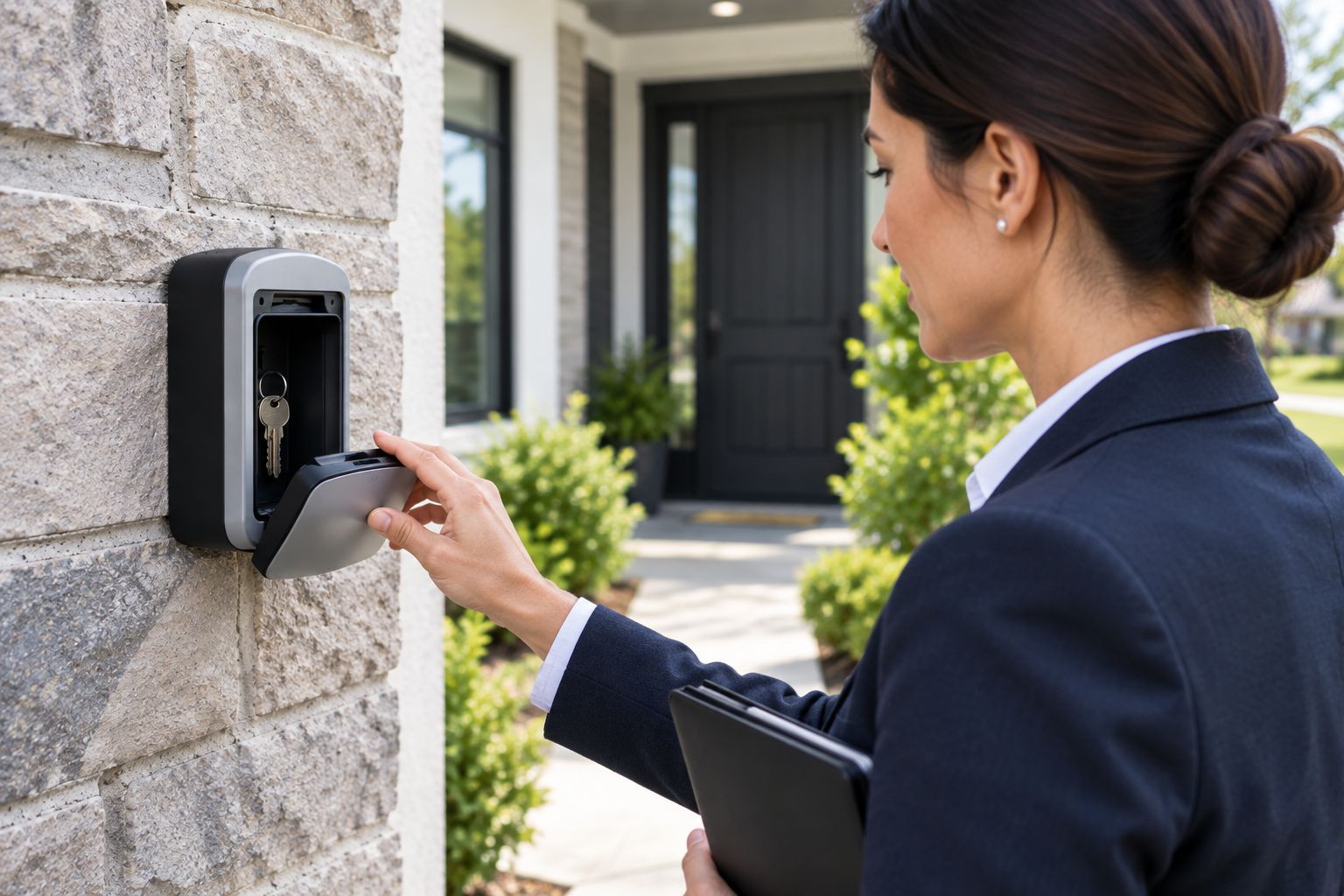
- Identify each device. Walk through the active listings and note whether each property has a mechanical combination key safe, an electronic lockbox managed by a provider, or another access arrangement. Do not group devices together because they look alike.
- Assign a property reference. Use the same reference in the listing record, on the office key tag and in the lockbox network. Record the on-site location separately so an authorised visitor can find the device without mistaking a neighbouring property's box for it.
- Check the physical handover. With permission from the property owner or manager, confirm that the right key is inside, the compartment closes properly and the access method works. Test without leaving the property unsecured.
- Flag unmatched entries. Put any property with a missing key, unknown code or unidentified device on hold for key handovers until the responsible person resolves it. Do not copy an old code into a new record just to fill a blank.
Expected result: every active listing has a known access method and a matching property reference. An entry marked unresolved is visible to the person approving access, not hidden in a message thread.
A key safe's position also matters to this check. Record its actual location in the restricted register rather than relying on a vague description such as near the door. Confirm that the installation is authorised before changing its position or mounting hardware.
Match the access method to the workflow
| Access option | Best for | Advantage | Limitation |
|---|---|---|---|
| Mechanical combination key safe | Agencies managing access through an approved register | Does not depend on a software connection | Cannot send an access event to the register |
| Provider-managed electronic lockbox | Agencies whose devices and provider support network management | Uses the provider's supported access workflow | Features and connection steps depend on the specific system |
| Office key cabinet | Teams holding spare or override keys | Keeps physical keys in one managed location | Does not control an on-site lockbox |
The office key cabinet complements either on-site option; it does not replace one. Best for a mixed portfolio: record the device type per property, then follow the matching access procedure instead of issuing every visitor the same instructions.
Build the property register
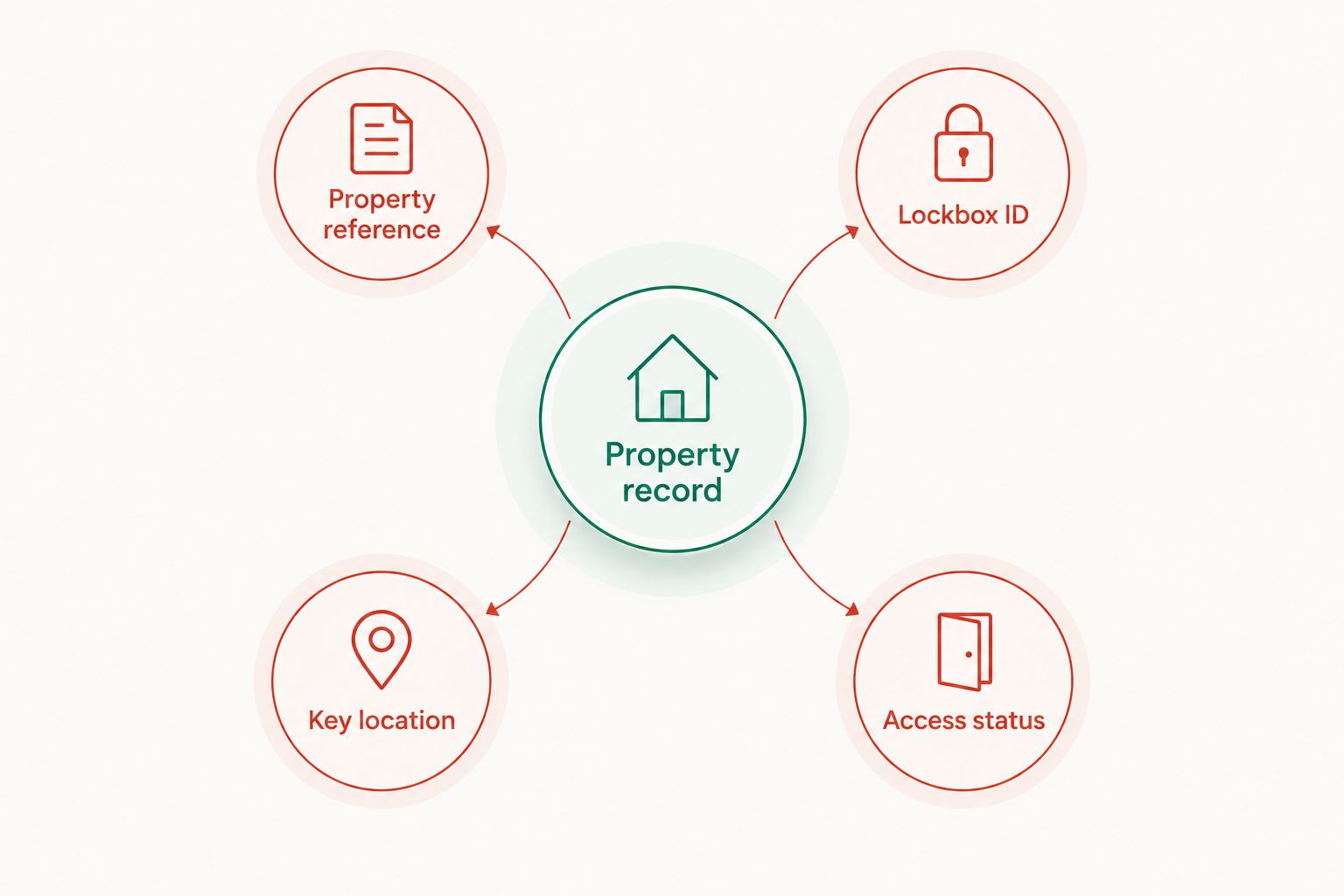
Create one Property record per active listing. The following labels are fields for your own register, not claimed menu labels in a lockbox provider's software.
- Property reference: enter the identifier used by the agency's listing system. Check it against the key tag before saving the record.
- Lockbox ID: enter the device identifier if there is one. For a mechanical box without an identifier, give it an internal asset reference so staff can distinguish it from another box at the same property.
- Key location: record the on-site position and the office cabinet hook or other approved storage location for any spare. Restrict this field to authorised staff.
- Access status: use clear states such as active, access suspended and closed. Include the responsible staff member and the date of the last authorised code change in the record.
Store the active code only where the agency's access policy permits it. If your network provider manages credentials, point the register to that managed record rather than duplicating a live PIN in an unrestricted spreadsheet. A property reference without a verified key location is not a finished 2026 access record.
Expected result: someone authorised to issue access can identify the right property, device and current access status from one record. They do not need to search past messages to work out which key belongs to which listing.
Set up office key custody
Keep office-held keys separate from the codes used to reach them at properties. Buy A Safe lists key cabinets that agencies can assess for this storage role, but a product name alone does not establish its capacity, audit logging or compatibility with a lockbox network.
| Office cabinet | Best for | Useful starting point | Check before choosing |
|---|---|---|---|
| CMI Security Key Cabinet SKC-250D | Agencies assessing central storage for property keys | Listed as a security key cabinet | Confirm capacity and access method against your key register |
| Secuguard Key Cabinet AP-27KE Electronic Locking | Agencies assessing an electronic-locking cabinet | Electronic locking is identified in the listing | Verify access records and network compatibility separately; the name proves neither |
Neither cabinet is a substitute for an on-site lockbox. Buy A Safe is best for sourcing the physical storage part of this workflow; choose the cabinet against your actual key count and access requirements rather than assuming it connects to a third-party system.
- Tag each office key. Put the property reference on its tag and enter the cabinet location in the register. Avoid placing an address on a loose key tag.
- Assign custody. Decide which authorised staff can issue, receive and reconcile keys. Where the cabinet supports individual credentials, configure them using that model's instructions; do not assume every lock has that function.
- Test a retrieval and return. Have an authorised staff member find the correct key, record its issue and return it to the recorded position. Correct any mismatch before using the cabinet for live handovers.
Expected result: the office can locate an authorised property's spare key and establish who has custody of it. A locked cabinet without a matching register only changes where misplaced keys accumulate.
Issue and retire access
- Verify the request. Match the person requesting entry to the agency's approved access process and the property's access status. Do not issue a code because the requester already knows the address.
- Provide the appropriate credential. For a mechanical key safe, share the current approved code through the agency's authorised channel. For a provider-managed lockbox, use the provider's supported method; do not send a permanent administrator credential in its place.
- Record the handover. Note the property reference, recipient, purpose and responsible staff member in the approved system. Confirm how the physical key will be returned and checked.
- Close the access event. Verify the key is back in the box or cabinet, the compartment is shut and the property record reflects the outcome. Escalate an unreturned key rather than marking the event complete.
Expected result: each handover has an accountable requester, a verified key return and an access status the next staff member can trust. The register records a manual handover; it is not evidence that a mechanical key safe detected an opening.
Set a 2026 code-change procedure for staff departures, suspected code exposure and the end of a property's authorised access period. If a device's code cannot be changed, follow the owner's approved procedure for replacing or removing it. Changing a code in the register without changing the device leaves the old credential active.
Connect a provider-managed lockbox when supported
An adjacent workflow exists for an electronic lockbox that its provider explicitly supports. The exact buttons and field names depend on that provider, so use its current device instructions rather than a generic pairing sequence.
- Confirm the device model appears in the provider's supported-device information and that your agency has administrator access.
- Add or assign the device to the correct property using the provider's documented process. Match its displayed device identifier to the Lockbox ID in your agency register.
- Give a test user only the access permitted by your agency's policy. Complete a supervised entry test, then check the provider's record for the result if it offers access-event logging.
- Remove the test permission and confirm the property's Access status still matches the provider's active listing.
Expected result: the provider recognises the correct device at the correct property, and your agency register points to that device. If the provider offers no compatible device workflow, stop here. An office key cabinet, QR label or spreadsheet cannot create the missing software connection.
Troubleshooting
- The device is absent from the provider's supported list. Check its full model identifier, not just its brand. Use the manual key safe workflow if the provider does not document a connection for that model.
- The key tag and property record disagree. Suspend handovers for that listing. Verify the key at the property and update both records before anyone uses it.
- A code works on the box but not in the register. Treat the physical device as the source of the mismatch, not as permission to reuse the code. Have an authorised administrator verify and correct the entry.
- An office key is out but nobody can identify its holder. Mark it unresolved, contact the last recorded custodian and follow the agency's missing-key process. Do not close the handover because the cabinet door is locked.
- A former staff member still appears as an authorised user. Remove their access in each relevant system and review any codes they received. Revoking office cabinet access alone does not change a property's key safe code.
Customize your workflow
Apply the same property-reference and key-return checks to contractors, photographers and short-stay handovers, but keep their permissions distinct. A visitor who needs entry to one property should not receive an office cabinet credential or a reusable code for other listings.
For a larger 2026 portfolio, review active listings against the physical devices and office keys on a scheduled basis. Record exceptions and assign an owner to resolve each one. The test is simple: an active listing has a verified device and key; a closed listing has no access left to issue through the agency's workflow.
FAQ
Can a standard key safe connect to a real estate lockbox network?
A standard mechanical combination key safe cannot make a software connection or report access events. You can connect it to an agency workflow by matching its property reference, code-handling process and physical key to a controlled register.
How do I know whether an electronic lockbox supports my network?
Check the exact device model against the network provider's current compatibility instructions. An electronic keypad alone does not prove that the device supports remote management or access-event logging.
Do I need an office key cabinet to manage property lockboxes?
No, but an office key cabinet provides a defined storage point for spare and override keys when an agency holds them. It does not pair with an on-site lockbox unless the specific products and provider document that connection.
What should a real estate lockbox register contain?
Record a property reference, device identifier if available, key location, access status and responsible staff member. Restrict live codes to the agency's approved credential storage process.
When should a property lockbox code be changed?
Change it when the agency's access policy requires rotation, including after suspected exposure or when access to a property ends. Update the physical device and the authorised record together; changing only the register does not revoke a working code.
Can a key cabinet show who entered a property?
No. An office cabinet controls or stores office-held keys; it does not establish who opened an on-site property key safe. Check the specific cabinet and lockbox documentation for any access records they support.
What should happen to a lockbox at listing closeout?
Follow the owner-approved closeout process: stop issuing access, account for the property key and remove or reassign the device as authorised. Close the agency's property record only after its physical access arrangements have been checked.
One last thing
A code rotation has two separate parts: change the credential on the device and update the authorised record. Doing only one leaves either a working old code or instructions that send staff to a box they cannot open. For Buy A Safe customers setting up office key storage in 2026, make that two-part check part of the same closeout record as the key return.


