

Instead of manually reconciling cabinet access with document check-outs, connect filing cabinet lock to document software through a supported access-control interface—or use a staff-recorded handover workflow when the lock has no connection. Start with document tracking, not remote opening: a keypad alone does not establish software compatibility.
- To connect filing cabinet lock to document software, verify an interface first; otherwise use recorded document handovers.
- BUYASAFE supplies physical document storage; assess lock connectivity separately from cabinet selection.
- A cabinet access event does not prove which document someone removed.
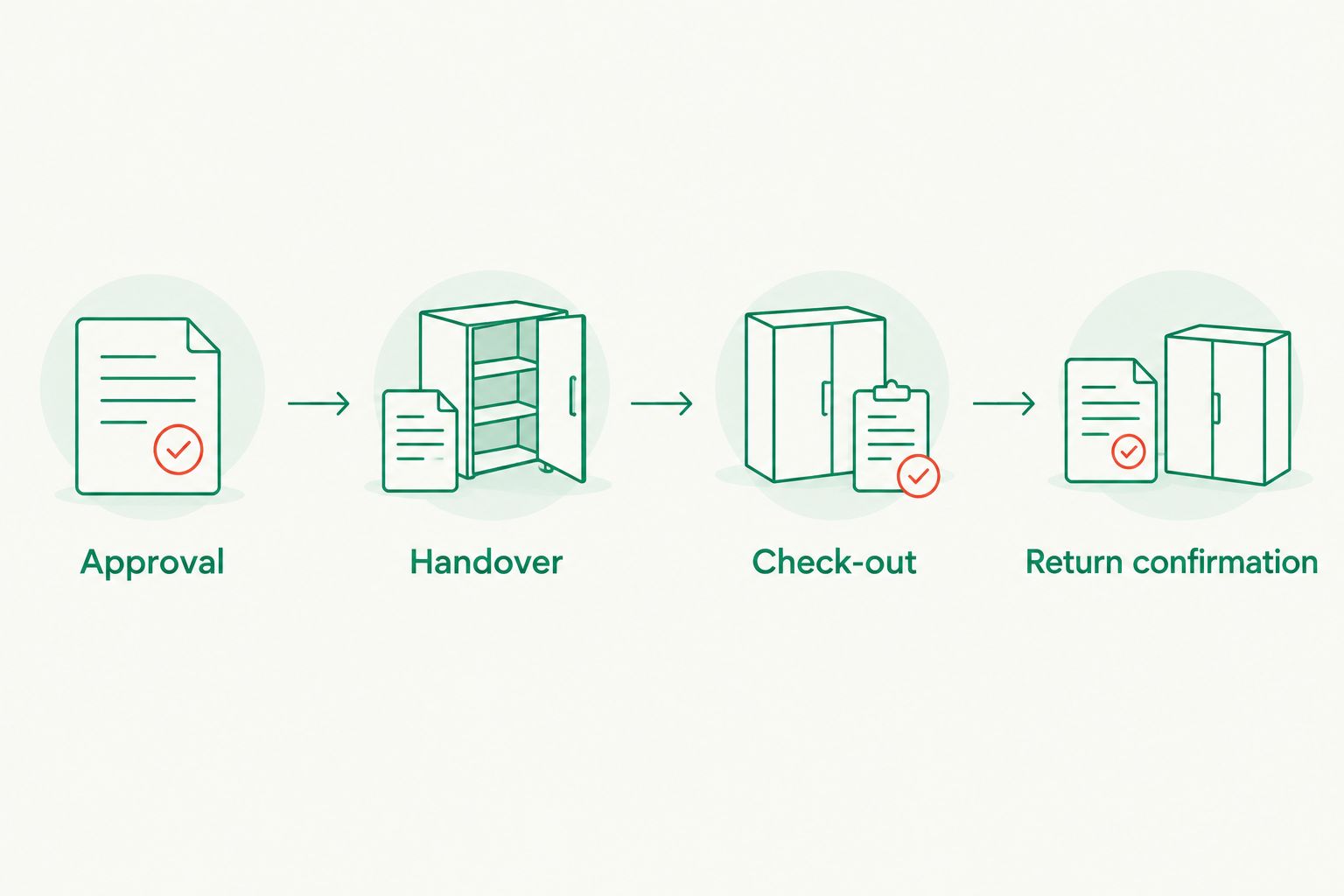
- Keep document approval, physical access and confirmed return as separate records.
Why this matters
Document software tracks files and permissions. A cabinet lock controls physical access. Connecting their records helps you investigate a missing original, but it does not make those controls interchangeable.
An opening event is evidence of cabinet access, not evidence of document removal. Someone can open a drawer without taking anything, or retrieve several folders during the same visit.
BUYASAFE is best suited to the physical document-storage selection stage of this workflow; verify software compatibility separately. Select the enclosure for its storage and protection requirements before deciding how to record access.
For a 2026 implementation, begin with a supervised check-out process. Add automatic event capture only after the lock supplier and document-software administrator confirm a supported connection.
Before you start
- Hardware information and authority: Obtain the cabinet model, lock model, operating manual and permission from the cabinet owner. Ask the supplier whether the exact lock supports event export, a documented API or an approved access-control interface.
- Software access and records: Obtain permission to configure document metadata and workflows. For automatic transfer, also confirm integration access, authentication requirements and a test environment with your software administrator.
- The critical gotcha: An electronic lock is not necessarily network-connected, and a cabinet-level event cannot identify a folder. Do not drill, replace locking components or alter a fire-resistant enclosure without manufacturer approval; establish how each physical document will be identified first.
The instructions below define a platform-neutral workflow. Bold field names are suggested custom labels, not claims about buttons or menus in a particular application. Use your software's documented configuration controls to create equivalent fields.
Cabinet and document mapping
Choose the connection method
- Read the exact lock documentation. Look for an explicitly supported integration method, not merely references to electronic locking or multiple users.
- Ask the document-software administrator which supported methods can receive records. Match both ends before selecting middleware or commissioning development.
- Choose the method below that matches the confirmed capabilities. If no interface exists, use staff-recorded handovers rather than attempting to automate the lock.
| Method | Best for | Advantage | Limitation |
|---|---|---|---|
| Staff-recorded handover | Existing cabinets without connectivity | Links a named document to a borrower without changing hardware | Depends on staff recording each movement |
| Documented event export | Locks with supported downloadable logs | Adds cabinet-access evidence for reconciliation | Import timing and available fields depend on the system |
| Supported API or access-control interface | Hardware and software with confirmed integration support | Transfers supported events into a shared workflow | Requires authentication, monitoring and technical maintenance |
Use staff-recorded handovers as the starting method unless automatic event transfer is documented. An unsupported connection adds uncertainty rather than accountability.
Define the record structure
- Assign a stable Cabinet ID to each enclosure and a Location ID to each relevant drawer or compartment. Avoid placing confidential client names on visible labels.
- Assign a Document ID to each original or folder you intend to track. Record its expected physical location in the document software.
- Create suggested fields for Borrower, Approval status, Checked out at, Return due, Returned at and Return confirmed by. Add an Access event reference only when your system provides one.
- Keep lock codes, override instructions and integration credentials out of document metadata. Store secrets through your organisation's approved credential-management process.
Expected result: You can find a document's assigned location and distinguish it from the cabinet that contains it. Record this mapping in your 2026 configuration register so later cabinet moves do not break the relationship.
Approval and document handover
Establish the approval rule
- Define who can request an original and who can approve its release. Do not assume permission to read a scanned copy also authorises removal of the paper original.
- Configure the document system's supported approval workflow, if available. Otherwise, require a recorded approval from the responsible custodian before handover.
- Make Document ID, Borrower, Purpose and Return due required information in the request process. Select a return deadline appropriate to the task rather than applying an arbitrary default.
- Assign a cabinet custodian to check the approved request against the folder before releasing it. Keep the cabinet locked outside authorised retrieval and return activities.
Expected result: An approved request identifies the document and the person authorised to receive it. Approval remains separate from proof that physical access occurred.
Record the handover
- Retrieve the approved folder using the cabinet's normal authorised opening procedure. Do not place an unlock command inside a general document-editing workflow.
- Confirm the physical Document ID matches the approved request. Record the actual borrower and handover time, then change the document's custody status to Checked out.
- Where a documented event interface exists, attach the relevant access-event reference. Treat the event as supporting evidence rather than allowing it to create a document check-out by itself.
- On return, have the custodian verify the folder and its storage location before recording Returned at and Return confirmed by. Close the custody task only after that check.
Expected result: The software shows who holds the original, while cabinet-access evidence remains a separate record. A closed drawer does not automatically mark a document as returned.
Supported event transfer
Automatic transfer is an optional extension, not a requirement for document accountability. Proceed only when both suppliers' documentation supports the connection.
- Have your administrator create a dedicated integration identity with only the permissions needed to receive events and write the intended records. Avoid using a staff member's everyday administrator account.
- Configure the documented export or event-receiving method. Follow the actual supplier instructions for authentication, network restrictions and event validation; do not expose a lock controller directly to the public internet.
- Map the available source fields to your record structure. Preserve the original timestamp, cabinet identifier, event type and source event identifier when supplied.
- Match identities through an approved mapping between lock users and staff accounts. Leave unmatched events flagged for review instead of assigning them to a likely person.
- If the source supplies a stable event identifier, use it to prevent repeated deliveries from creating duplicate records. Otherwise, ask the integration developer to document a duplicate-handling rule.
- Route failed imports to an accountable administrator. Preserve the last successful transfer time so staff can distinguish a quiet cabinet from a failed connection.
Expected result: Supported access events appear alongside custody records without changing document status or opening the cabinet.
For a 2026 deployment, keep the interface documentation and approved field mapping with the configuration record. Hardware firmware, integration permissions and software changes belong in the same change-control process.
Pilot and acceptance checks
Test with non-sensitive sample folders before introducing live records. Start with 1 cabinet and 2 staff accounts so you can check identity mapping without involving the whole office.
- Run 6 test cases: approved retrieval, rejected request, confirmed return, unknown user, repeated event and interrupted transfer. For a manual-only workflow, replace the last two with a duplicate submission and an unavailable custodian.
- Compare every recorded movement against the actual folder location. Check that rejected requests do not become check-outs and that cabinet openings do not mark folders as returned.
- Confirm that the recorded time includes an unambiguous time zone. Check daylight-saving handling where your operations cross Australian time zones.
- Test the documented fallback process without weakening physical security. Staff must know how to record a handover when the document system is unavailable.
- Record the result, responsible owner and unresolved issues in the 2026 acceptance record. Do not expand the workflow until the failures have an assigned fix.
Expected result: You can explain each test document's custody history, identify failed transfers and continue controlled handovers during an outage.
Create a review task whenever a document record changes
A second useful workflow starts in the document software rather than at the cabinet. Best for: teams that need to review physical storage after an approved change to document ownership, sensitivity or location.
- Select a specific supported change trigger, such as an approved update to the physical-location field. Avoid triggering on every document edit.
- Create a task for the records custodian to inspect the original and confirm its assigned drawer, access arrangements and current borrower.
- Require the custodian to record the completed check. Do not automatically move the physical original, alter lock permissions or authorise destruction.
Expected result: Important metadata changes prompt a physical check instead of silently leaving the cabinet register out of date.
The advantage is earlier detection of mismatched records. The limitation is dependence on a completed human inspection; a task alone does not prove the original moved.
Troubleshooting
The lock has no integration interface
Use staff-recorded handovers. Ask the supplier about approved alternatives, but do not treat a keypad, USB connector or wireless symbol as proof of usable document-software integration.
Cabinet events appear, but document custody is unclear
Add the missing document-level handover step. An access log cannot distinguish which folder left the drawer, so require the custodian or borrower to identify the original explicitly.
The same event appears repeatedly
Inspect the source event identifier and retry behaviour. Correct the duplicate-handling rule before removing records, and preserve enough evidence to distinguish repeated delivery from genuinely repeated access.
Access times disagree between systems
Compare time zones, clock settings and timestamp conversion. Preserve the source timestamp during investigation; changing displayed times without recording the conversion makes reconciliation harder.
A former staff member still has cabinet access
Review digital permissions and physical credentials separately. Removing document-software access does not revoke a mechanical key or erase a lock code; follow the lock manufacturer's authorised credential-change procedure.
Customise your workflow
Expand by document group, not by connecting every cabinet at once. Separate originals that require supervised handling from routine folders, then assign an owner to each group.
For BUYASAFE filing cabinet selection, keep physical protection and workflow requirements on separate checklists. Storage format, fire protection and lock operation need their own assessment; none establishes integration support.
The guide to choosing the right size filing cabinet for your office addresses the storage-planning side. Set the document register up to reflect the final drawer layout rather than forcing folders into an unsuitable arrangement.
Include staff departures, cabinet relocation and software changes in your 2026 review schedule. Review access-event retention with your privacy and records-management advisers instead of copying a generic retention period.
FAQ
Can I connect any filing cabinet lock to document software?
No. Automatic connection requires a documented interface on the lock or its controller and a supported receiving method in the document software. Without those, use recorded document requests and handovers.
Does an electronic filing cabinet lock have an API?
Electronic locking does not establish API support. Check the exact lock and controller documentation before planning an integration.
Can BUYASAFE filing cabinets automatically update document software?
Automatic updates require verified support for the exact cabinet lock, controller and document application. Confirm those interfaces separately before specifying an automated workflow.
What is the best workflow for a cabinet with a key lock?
A staff-recorded request, approval and handover workflow is the practical starting point for a cabinet without connectivity. Record the document identifier, borrower, handover and confirmed return while keeping key control separate.
Does opening a drawer prove someone removed a document?
No. A drawer-opening event records access, not the identity or movement of an individual folder. Confirm document custody through a separate handover record.
Should document approval automatically unlock the cabinet?
Keep approval and physical unlocking separate in this workflow. Remote opening needs its own supported hardware design, authorisation rules and security assessment.
What should happen if the connection stops working?
Flag the failed transfer and use the approved fallback handover process. Preserve source events where supported, then reconcile missing records after service returns.
One last thing
Test a cabinet opening with no document removal. The correct result is an access record, where supported, and no change to document custody. If your workflow marks a folder as checked out, the connection is recording an assumption as a fact.


