

Instead of manually emailing your accountant after every capacity check, use a Google Sheets cash register and a scheduled Apps Script to send an alert when recorded deposits reach your chosen limit. This workflow automates the notification, not the measurement: staff must update the register unless you have a separately verified source of safe-capacity data.
- For a cash safe capacity alert accountant workflow, Google Sheets can trigger email from recorded deposit counts.
- A digital lock alone does not establish that a safe measures its contents or supports integrations.
- Record deposits and collections, suppress repeat messages, and send operational alerts to the responsible manager too.
- BUYASAFE supplies physical safes; this guide configures a separate cash-handling notification workflow.
Why this matters
A full-safe notification needs a dependable input. A keypad entry, door opening or completed sale does not establish how much usable space remains inside a safe.
BUYASAFE sells safes for home and business use. BUYASAFE is best suited to buyers choosing physical safes; use a separate workflow for cash-capacity notifications. This guide does not assume that any listed safe includes sensors, an API or accountant notifications.
For your 2026 cash-handling procedure, separate physical fullness from cash value. Identical deposit bags containing different denominations can occupy similar space while holding different amounts. A capacity alert also does not establish compliance with your insurer's conditions.
Before you start
- Accounts and access: use a business-controlled Google account with Google Sheets, Apps Script and permission to send email. Confirm that your organisation permits Apps Script and that the trigger owner will retain access.
- Materials and responsibility: prepare a safe identifier, an agreed deposit-bag limit, the accountant's approved email address and the manager responsible for arranging collection. Establish the limit from the actual storage arrangement, not an assumed manufacturer capacity.
- The gotcha: the register must show bags currently inside the safe, not lifetime deposits. Staff must subtract collected bags and record the remaining contents; otherwise the workflow stays in an alerted state.
Do not fit sensors, drill holes, alter wiring or obstruct a deposit mechanism to support this workflow. Ask the safe supplier about any proposed physical modification before proceeding.
Choose your capacity input
Best for a repeatable starting point: count consistent deposit bags. This works only when your team uses a consistent bag format and maintains an accurate current count. Keep space clear for the safe's normal operation.
| Workflow | Best for | Advantage | Limitation |
|---|---|---|---|
| Recorded bag count | Teams using consistent deposit bags | Provides a clear threshold for automatic email | Depends on accurate deposit and collection records |
| Staff-confirmed full status | Mixed bags, envelopes or irregular contents | Lets staff report unusable space directly | Requires a physical check and manual status update |
Neither option measures cash value. Keep your approved cash-value limits and reconciliation controls separate from the capacity calculation.
Use the bag-count version below first. The staff-confirmed variant appears after the setup steps and uses the same notification logic.
Register configuration
Create the current-state register
- Open Google Sheets and create a blank spreadsheet. Give the file a recognisable name, such as Cash safe monitoring 2026.
- Rename the worksheet Safe status. The script uses that exact worksheet name.
- Enter these headings across the first row, in this order: Safe ID, Bags present, Bag limit, Updated at.
- Add one row per safe. Use a unique internal identifier rather than a description revealing its precise location.
- Enter the current bag count, the approved bag limit and the time staff last checked the contents.
- Restrict editing to the people responsible for updating the register. Give other readers only the access they need.
Use whole-number counts. Bags present can be zero; Bag limit must be greater than zero. Do not enter currency amounts, percentages or words in these columns.
Expected result: each safe has one current-state row showing the bags physically present. Keep transaction history in a separate worksheet so historical deposits cannot be mistaken for current contents.
Define the operating rule
The alert condition is simple: Bags present is greater than or equal to Bag limit. Choose a working limit that leaves the deposit mechanism and door operating normally; do not wait for a blockage.
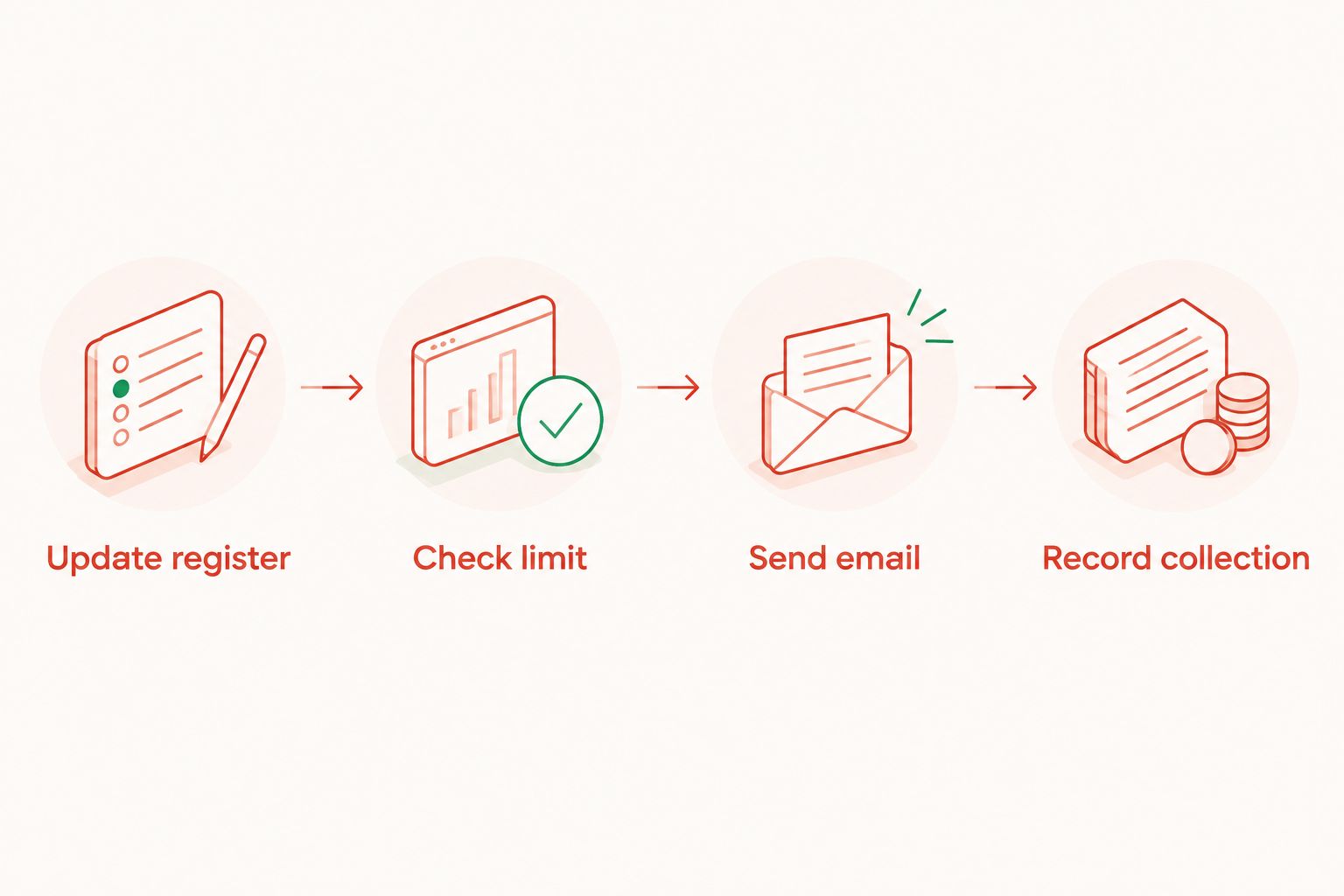
Assign ownership before enabling the automation. Your accountant can review records, but the person arranging collection needs the alert too. Do not make an external accountant the sole operational recipient unless that responsibility is explicitly agreed.
Notification script configuration
Add the threshold-checking script
- In the spreadsheet, select Extensions, then Apps Script.
- Replace the starter code with the script below.
- Replace the example recipient text with the approved email addresses. Separate multiple addresses with commas.
- Select Save project, and give the project a recognisable name, such as Safe capacity notifications 2026.
The script checks the current rows and remembers which safes have already generated an alert. It resets that memory after it observes a count below the limit.
function checkSafeCapacity() {
  const recipients = 'REPLACE WITH APPROVED EMAIL ADDRESSES';
  const sheet = SpreadsheetApp.getActiveSpreadsheet()
    .getSheetByName('Safe status');
  if (!sheet) throw new Error('Missing Safe status worksheet');

  const rows = sheet.getDataRange().getValues().slice(1);
  const properties = PropertiesService.getScriptProperties();
  const seen = new Set();

  const records = rows.filter(row =>
    row.some(value => String(value).trim() !== '')
  ).map(row => {
    const id = String(row[0]).trim();
    const countText = String(row[1]).trim();
    const limitText = String(row[2]).trim();
    const count = Number(countText);
    const limit = Number(limitText);
    const updated = row[3];

    if (!id || seen.has(id)) {
      throw new Error('Missing or duplicate Safe ID');
    }
    seen.add(id);
    if (!countText || !limitText ||
        !Number.isInteger(count) || count < 0 ||
        !Number.isInteger(limit) || limit <= 0 ||
        !(updated instanceof Date) ||
        isNaN(updated.getTime())) {
      throw new Error('Invalid count, limit or date for ' + id);
    }
    return {id, count, limit, updated};
  });

  records.forEach(record => {
    const key = 'capacity:' + record.id;
    if (record.count < record.limit) {
      properties.deleteProperty(key);
      return;
    }
    if (properties.getProperty(key)) return;

    MailApp.sendEmail({
      to: recipients,
      subject: 'Safe capacity action required: ' + record.id,
      body: [
        'The recorded bag count has reached its working limit.',
        'Safe ID: ' + record.id,
        'Register updated: ' + record.updated.toISOString(),
        'Confirm the current contents and arrange the agreed action.',
        'This notification is based on the register, not a sensor.'
      ].join('\n')
    });
    properties.setProperty(key, new Date().toISOString());
  });
}
Expected result: the saved project contains a function named checkSafeCapacity. No email is sent merely by saving the code.
Authorise and test the function
- Keep all real rows below their limits. Add a clearly identified test row and use a valid date-time in Updated at.
- Select checkSafeCapacity in the function selector, then select Run.
- Complete the Google authorisation prompts using the business account responsible for the workflow. Read the requested permissions before approving them.
- Confirm that the below-limit test produces no email.
- Change the test count to equal its limit, update the timestamp and select Run again.
- Confirm receipt, then run the function again without changing the row. It should not send another alert.
Finally, lower the test count below the limit and run the function. Raise it to the limit and run again; a new email should arrive. Remove the test row afterwards.
Expected result: the function sends a message on a newly observed full state, suppresses repeats and becomes ready for another alert after observing a below-limit state.
Scheduled trigger configuration
Enable automatic checks
- In Apps Script, open Triggers in the left sidebar.
- Select Add Trigger.
- Under Choose which function to run, select checkSafeCapacity.
- Under Select event source, select Time-driven.
- Under Select type of time based trigger, select Minutes timer.
- Under Select minute interval, select Every 5 minutes, then select Save.
A 5-minute interval is a configuration choice, not a promise of instant delivery. This workflow checks recorded status on a schedule; it cannot detect an unrecorded deposit.
Allow a 10-minute test window to observe scheduled execution, then inspect Executions and confirm email delivery. If the trigger has not run, investigate before relying on it.
Expected result: scheduled executions appear without selecting Run. Check the trigger's failure-notification settings and ensure someone monitors the owner's mailbox.
Make the reset observable
After collection, staff must update the remaining count immediately. Leave the correct below-limit state in place for the scheduled checker to observe before the safe reaches its limit again.
If collection and refilling happen between checks, the script can miss the reset and suppress the next notification. For that operating pattern, use a transaction-based workflow with a collection event and incident identifier rather than this current-state register.
Record the successful trigger test in your 2026 procedure. Repeat the test after changing the owner, recipient list, worksheet structure or script.
Alternative: alert when staff mark the safe full
Best for irregular contents: use a staff-confirmed status. This avoids treating a mixed envelope pile as a reliable bag count, but it does not remove the need for staff checks.
To reuse the script, rename Bags present to Full flag and Bag limit to Alert threshold. The script reads column positions, so these heading changes do not affect execution.
Use these settings:
- Set Alert threshold to 1 for every safe.
- Enter Full flag as 0 when staff confirm usable space remains.
- Enter Full flag as 1 when staff confirm the working capacity has been reached.
- Update Updated at on every check, and change the email wording from bag count to staff-confirmed status.
These are status values, not capacity measurements. Retest both alert and reset behaviour before enabling the schedule. In your 2026 staff instructions, define what requires an immediate manager call rather than waiting for email.
Troubleshooting
No email arrives
Inspect Executions for permission or sending errors. Confirm the recipient addresses, check spam filtering and verify that the trigger owner still has access. Google account sending limits also apply; do not assume unlimited notifications.
A safe remains full but no second email arrives
Repeat suppression is intentional. This starter workflow sends an initial notification, not reminders. Add a separately designed acknowledgement and escalation process if unresolved alerts need follow-up.
The next full event produces no alert
Check whether the script observed a below-limit state after collection. If it did not, the previous alert marker remains. Correct the register and run the function while the safe is genuinely below its limit; never falsify the count to clear a marker.
Execution stops with a validation error
Check for duplicate identifiers, blank counts, non-integer limits or a timestamp stored as plain text. The script validates all populated rows before sending, so one invalid row blocks that execution. Correct the record and rerun the check.
The accountant receives an outdated warning
Compare Updated at with the actual contents. The script reports the stored timestamp but does not reject stale records. Add an overdue-update warning before expanding the workflow to unattended operation.
Customise your workflow
Keep the initial alert small: safe identifier, record timestamp and required action. Do not include access codes, combinations, detailed safe locations or collection routes. Share cash-value details through your approved restricted records instead of the notification body.
For multiple sites, assign a responsible manager to each safe and define how acknowledgement is recorded. A sent email is not evidence that anyone has arranged collection.
BUYASAFE cash-safe selection and notification design solve different problems. Review the time-lock safe to cash reconciliation workflow when planning how deposits, collections and reconciliation records fit together.
FAQ
Can my cash safe automatically email my accountant when it is full?
Yes, if a separate workflow receives a dependable capacity signal or staff-maintained status. The Google Sheets workflow sends email from recorded counts; it does not measure the safe's contents.
Does a digital safe lock detect how much cash is inside?
Do not treat a digital lock as a capacity detector. Confirm any sensing, reporting or integration functions against the exact model's documentation before designing a connection.
What's the best cash safe capacity alert accountant setup for a small business?
A staff-maintained register with threshold email is a practical starting point when deposit bags are consistent. Mixed contents suit a staff-confirmed full status, while both approaches require accurate updates.
Should the alert go only to my accountant?
Send the operational alert to the person responsible for arranging collection as well. Give the accountant notifications only where that supports an agreed reconciliation or oversight role.
Will the workflow send another message every time it checks?
No, the supplied script suppresses repeat alerts for a safe already marked as notified. It resets after observing a recorded count below the limit.
Can I use the safe's cash rating as its capacity limit?
Do not substitute a cash rating for physical storage capacity. Confirm insurance requirements separately and establish the working capacity from the safe's actual contents and normal operation.
What happens if staff forget to record a collection?
The register remains inaccurate and the alert marker does not reset. Update the remaining contents after every collection and verify that the checker observes the below-limit state.
One last thing
The reset matters as much as the alert. A workflow can send its first email correctly and still miss the next full event if nobody records collection. Include a complete deposit, alert, collection and reset cycle in your 2026 acceptance test—not just an email-delivery check.


