

Instead of manually changing key-cabinet access after every roster update, connect your staff roster to supported cabinet-management software so approved shifts determine access. Automatic control requires a documented integration, API or import function; an electronic keypad alone does not establish that capability.
- To connect electronic key cabinet to staff roster, verify software compatibility before configuring access permissions.
- BUYASAFE is best for buyers comparing physical key cabinets; confirm roster integration separately for the exact model.
- Use published shifts, stable employee identifiers and explicit approval rules to calculate cabinet access.
- Test cancelled shifts, overnight work and access removal before enabling automatic updates.
Why this matters
A roster describes who is working. A key-cabinet permission describes who can retrieve keys. A published shift should grant access only when the employee, location and key entitlement all match your approved rules.
BUYASAFE sells key cabinets alongside other security storage. When assessing a cabinet for this workflow, separate its physical locking features from its software capabilities: neither a digital lock nor a staff PIN proves that roster synchronisation exists.
For your 2026 setup, decide whether you need cabinet-door access or control over individual keys. These are different requirements. A cabinet that opens for an authorised employee does not, by itself, restrict which keys that employee takes.
Before you start
- Get the right access: obtain authorised administrator access to your rostering system and cabinet-management software, the exact cabinet model details, and the relevant manufacturer documentation. Confirm any required integration permissions with your software administrator.
- Prepare your records: collect stable employee identifiers, approved sites, key entitlements, published shift times and employment status. Keep PINs, passwords and recovery credentials out of roster exports.
- Check the hidden dependency: confirm whether permissions reach the cabinet immediately, on a schedule or only through a local controller. A successful software update is not proof that the physical cabinet has received it.
Stop before configuration if the manufacturer does not document a suitable connection method. Use a supervised manual process instead; do not modify the lock, expose its controller to the internet or assume a general automation service can operate it.
Choose your connection method
Select the method supported by both systems, not the method with the fewest apparent steps. The table below compares workflow options, not verified features of any particular cabinet.
| Connection method | Best for | Advantage | Limitation |
|---|---|---|---|
| Documented native integration | Teams whose exact systems are supported together | Keeps the connection within the supported integration | Depends on the connector's available fields and removal behaviour |
| Documented API connection | Teams with technical ownership and supported APIs | Allows explicit permission rules and error handling | Requires development, credential management and maintenance |
| Supported file import | Teams using controlled batch updates | Provides a reviewable file before changes are applied | Access changes wait for the next completed import |
| Supervised manual updates | Cabinets without software integration | Works without inventing a connection capability | Depends on an administrator completing and checking changes |
Use a documented native integration first when it meets your access-removal requirements. Choose an API connection only with a named technical owner. Treat file imports as batch administration, not real-time access control.
The remaining steps describe the configuration decisions shared by supported integrations. Follow your systems' documentation for their actual buttons and menu names; the field names below define a proposed mapping, not a claimed interface.
Staff identity and roster source
Prepare the employee mapping
- Choose the authoritative employee identifier from your roster or identity system. Use a stable identifier rather than matching solely on a person's name.
- Match that identifier to the corresponding cabinet user record. Resolve duplicate names, duplicate accounts and unmatched employees before importing permissions.
- Select published, approved shifts as the scheduling source. Exclude draft shifts, open shifts without an assigned employee and cancelled shifts.
- Record the roster's time zone and the cabinet controller's time-zone configuration. Check daylight-saving behaviour for every operating location.
Expected result: every pilot employee maps to a single intended cabinet user, and every selected shift has a location, start time and finish time.
For the 2026 mapping record, retain only the information needed to make and verify access decisions. Payroll details and unrelated personal information do not belong in a key-access feed.
| Proposed data field | Purpose | Validation rule |
|---|---|---|
| Employee identifier | Matches roster staff to cabinet users | Reject missing or ambiguous matches |
| Employment status | Identifies inactive staff | Block new grants for inactive employees |
| Shift status | Separates approved work from drafts | Process only the approved status you selected |
| Site identifier | Selects the permitted location | Reject unknown locations |
| Start and finish | Defines the authorised interval | Reject invalid or incomplete intervals |
| Key entitlement | Identifies permitted keys or groups | Require a separately approved entitlement |
Access policy and permission mapping
Define the access calculation
- List the keys or key groups each role is authorised to use. Obtain approval from the person responsible for those assets.
- Map roster locations to cabinet locations. Do not give access to every cabinet because an employee works across several sites.
- Set the permitted access interval. If staff need preparation or return time outside their shift, document that allowance explicitly.
- Define what happens when shifts overlap, change location or are cancelled. Calculate the employee's remaining approved access before removing a permission used by another valid shift.
- Establish a separate process for emergencies and supervisor overrides. Require an identified approver and a recorded reason.
Expected result: the same employee and shift data always produce the same approved access decision, with unknown records held for review rather than granted access.
Keep the logic readable: Identity match, Approved shift, Key entitlement, then Cabinet access. A shift alone is not enough. Someone working at reception does not automatically need every vehicle or plant-room key stored on site.
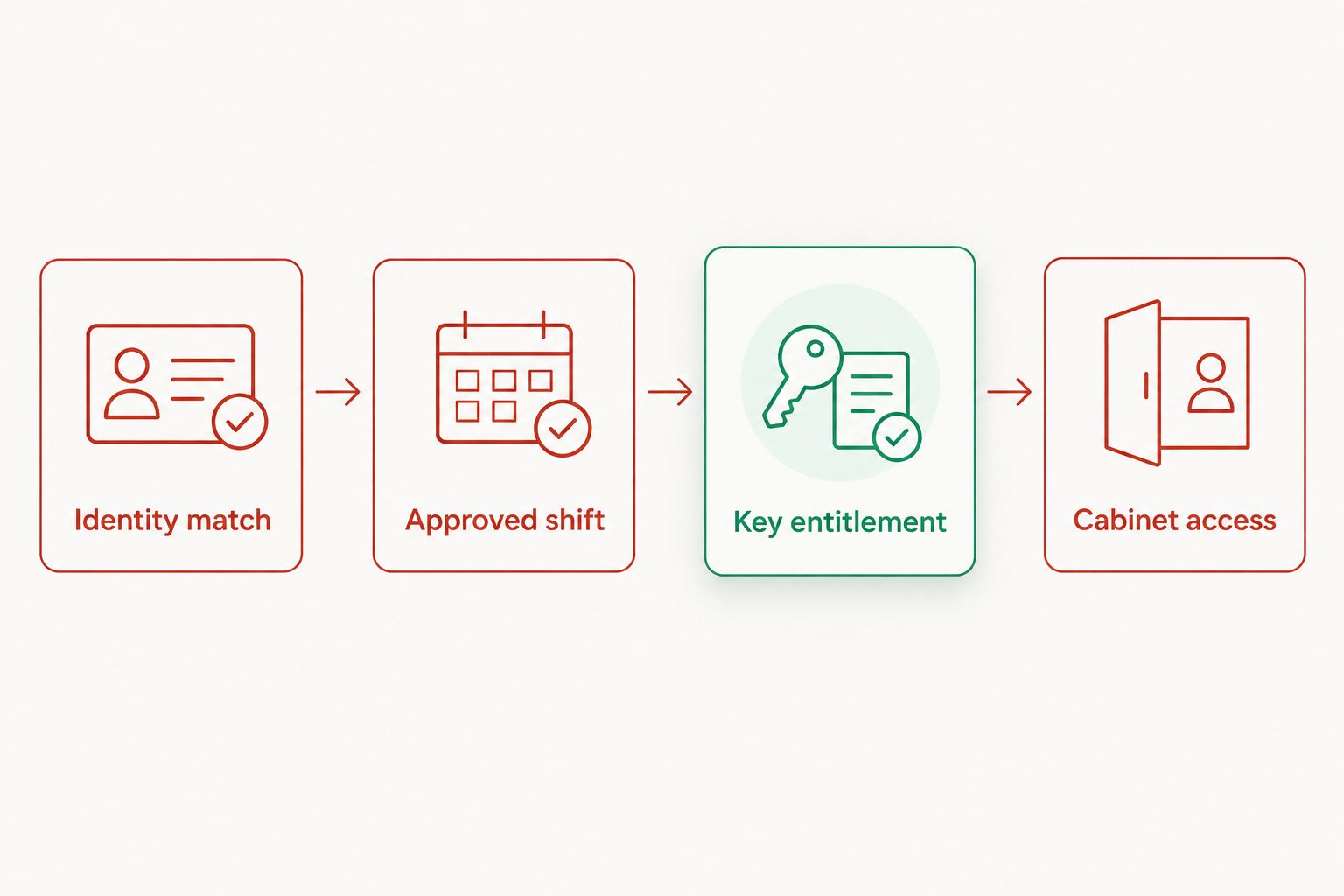
For physical selection alongside these rules, use the office key cabinets for large teams guide. BUYASAFE key cabinets should be assessed against the access level you need; this workflow does not establish software compatibility for any listed model.
Connection and update handling
Configure the supported transfer
- Create the connection using the authentication method specified in the documentation. Give the integration only the permissions required for its approved tasks.
- Select the roster events or scheduled exports the supported connection provides. Include amendments and cancellations, not just newly created shifts.
- Map the validated records to cabinet users and permission intervals. Reject unknown employees, sites and key groups rather than substituting a default access group.
- Compare the desired permissions with the current permissions before applying changes. Reprocessing the same roster record should not create another user or duplicate access grant.
- Record each attempted change and its outcome. Distinguish a request being accepted from the permission reaching the cabinet, where the system exposes that information.
Expected result: an approved roster change produces the intended permission change, with a traceable outcome and an exception record when delivery fails.
Use a dedicated integration account where the platform supports one. Do not build a continuing connection around an employee's personal login, and keep connection secrets in your organisation's approved credential storage.
For your 2026 operating procedure, name who receives failures and who can make an urgent local change. An error alert is useful only when someone owns the response.
Pilot testing and release
Verify the physical outcome
- Start with 1 cabinet and 3 test accounts representing an authorised worker, an unauthorised worker and a departing worker. Use controlled test credentials and an authorised observer.
- Prepare 2 test shifts: a normal daytime shift and an overnight shift. Check access before, during and after each permitted interval.
- Cancel a shift after its permission has been created. Confirm the relevant access is removed at the physical cabinet, not just from the roster screen.
- Test a location change, a duplicate update and a rejected employee identifier. Confirm that none produces unintended access.
- Simulate a connection interruption using the documented test procedure. Check alert delivery, recovery and the approved local response before expanding the pilot.
Expected result: authorised access works, unauthorised access fails, and changes remain traceable through to the cabinet's supported confirmation or an observed test.
Record results against the exact hardware, controller and software configuration used in 2026. Repeat the relevant tests after changes to the connector, firmware, permission rules or time-zone settings.
Do not leave trial accounts active after testing. Keep the approved emergency-access procedure available to authorised staff without storing recovery credentials beside the cabinet.
Update access whenever a published shift changes
The adjacent workflow is continuous adjustment rather than initial provisioning. Enable it only when your connection supports the relevant updates or your batch process can reliably identify them.
Treat an amendment as a fresh calculation of the employee's approved access. Moving a shift to another site should remove access that is no longer justified and create only the newly approved permission.
Use these rules for ongoing changes:
- Shift cancellation: remove access attributable to the cancelled shift, preserving any separately valid entitlement.
- Shift swap: verify the replacement employee's identity and key entitlement before granting access.
- Employment termination: use the approved offboarding process to disable access independently of future roster changes.
- Early finish: apply your documented policy rather than assuming the roster's planned finish has changed.
- Key still out: escalate the outstanding key separately from disabling the employee's next cabinet opening.
Removing cabinet access does not recover a physical key already taken. Keep key-return checks in the handover and offboarding process.
Troubleshooting
The shift changed, but cabinet access did not
Check the full path: published roster record, transfer attempt, permission calculation and cabinet delivery. Inspect rejected records and controller connectivity before repeatedly resending the same change.
The wrong employee received access
Suspend the affected permission through the documented administration process. Correct the identifier mapping, review duplicate accounts and retest before restoring automated grants.
Overnight access ends too early
Check whether the finish date is correctly set to the following day. Then compare roster and controller time zones, daylight-saving settings and the system's documented handling of intervals crossing midnight.
A cancelled shift still permits entry
Confirm the connection processes cancellations and that removal reached the cabinet. Check for another valid shift or a manually assigned permission before concluding that the cancellation failed.
The cabinet opens, but any key can be taken
Review the hardware's actual control level. Door-level access is not individual-key release; use a supervised issue register or assess equipment documented to control individual keys if that distinction is required.
Customise your workflow
Expand by location and key group after the pilot passes. Add exception reporting for unmatched staff, failed removals and outstanding keys before adding more automatic grants.
For a 2026 review, give separate owners responsibility for roster accuracy, key entitlement approval and technical operation. One person can hold several roles, but each decision still needs clear ownership.
BUYASAFE key-cabinet selection and software integration are separate decisions. Specify both the physical storage requirement and the required connection behaviour before choosing equipment; do not treat a suitable lock as evidence of a suitable integration.
FAQ
Can I connect any electronic key cabinet to my staff roster?
No. Automatic roster control requires a documented connection method supported by the cabinet-management system and your roster platform. An electronic keypad does not establish that capability.
What's the best way to connect a key cabinet to a roster?
Use a documented native integration when it supports your permission rules and access removal. A supported API connection suits teams with technical ownership, while file imports suit controlled batch updates.
Can a spreadsheet staff roster control a key cabinet?
Only if a supported process can validate and transfer its records into the cabinet-management system. Without that capability, use the spreadsheet as a reviewed instruction for manual administration, not as an automatic control.
Should staff get key access for every rostered shift?
No. Grant access only when the employee's identity, approved shift, location and key entitlement match your policy. Being rostered at a site does not authorise every key stored there.
How do I remove key-cabinet access when someone leaves?
Disable the person's access through your approved offboarding process and verify the result at the cabinet. Do not rely solely on deleting future shifts, and separately recover any keys already issued.
What happens if the cabinet loses its network connection?
Offline behaviour depends on the cabinet and controller's documented design. Test whether existing permissions remain usable, whether updates wait for reconnection and how authorised staff handle urgent removals.
Does opening a key cabinet prove which key an employee took?
No. A door-opening record establishes cabinet access, not necessarily individual-key retrieval. Use documented individual-key tracking or a supervised issue-and-return register when that evidence is required.
One last thing
Test access removal before celebrating successful entry. Granting a pilot worker access proves only the easiest half of the workflow; cancellation, termination and offline handling determine whether obsolete permissions remain usable.
Before launch, ask an authorised tester to attempt access after a cancelled shift. Check the actual cabinet and retain the test result alongside your approved procedure.


