

A biometric safe with five staff fingerprints crammed into one shared code fails the day someone forgets which four-digit override they used last. Set up a proper multi-user fingerprint profile in the right order and every staff member opens the same safe with their own print — no shared code, no spare key drifting around the stockroom.
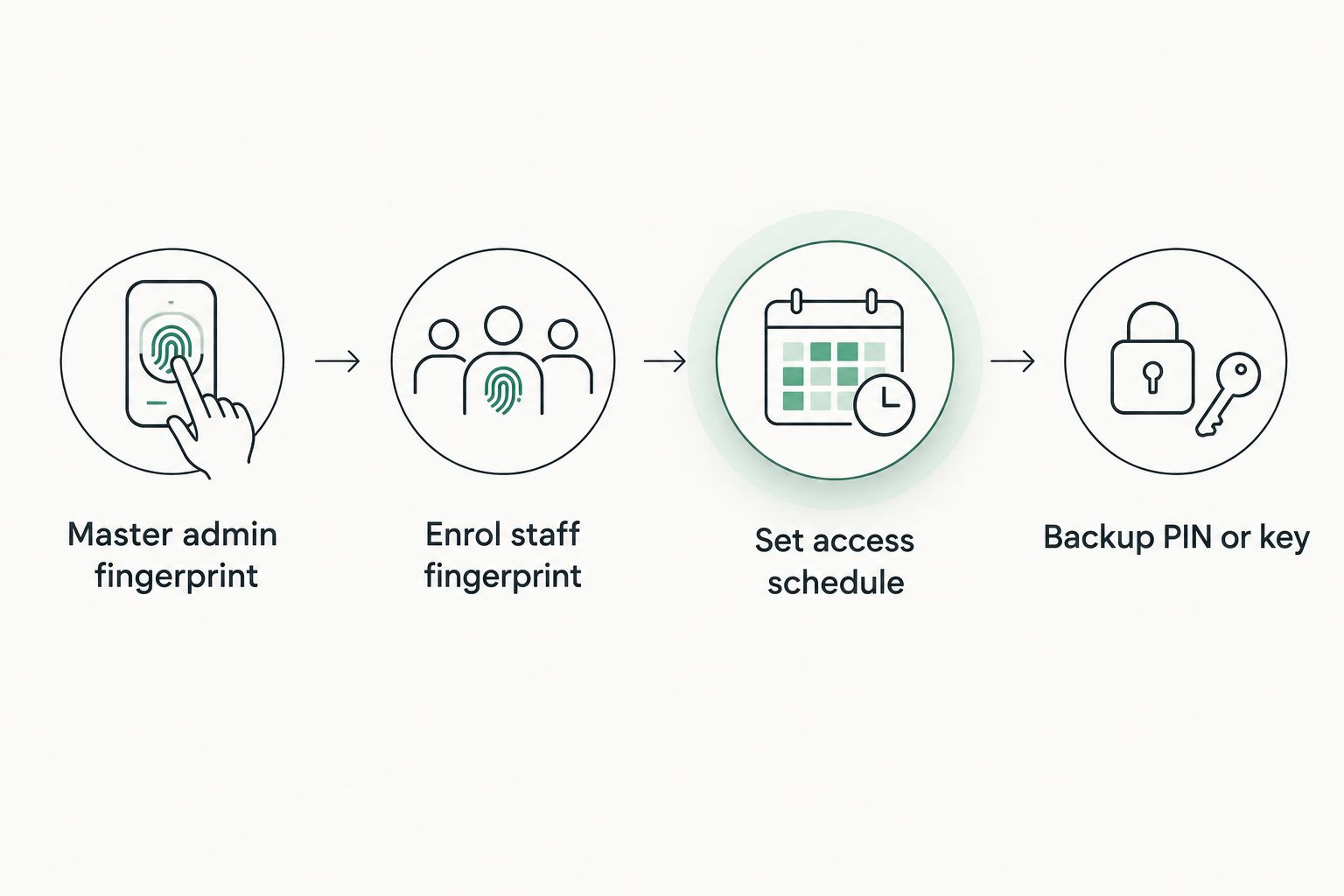
- Enrol the master admin fingerprint first — every staff print gets added under that admin profile, never the reverse.
- A biometric safe multiple user access setup needs a tested backup key or PIN before the first staff print goes in.
- Test each new print twice before locking the door in 2026 — a bad scan mid-enrolment locks the whole batch out.
- Fingerprint capacity varies by model, so confirm the enrolment limit before adding a large team.
- Re-enrol prints whenever staff turn over — an old print left active is the most common audit failure found in 2026.
Why this matters
A shared four-digit code on a commercial safe is a liability the moment more than two people know it. Codes get written on whiteboards, texted to a new hire, or never changed after someone leaves. A biometric safe multiple user access setup removes that single point of failure — each staff member's print is tied to their own enrolment slot, and removing someone who resigns takes one admin action instead of rekeying the whole unit.
The trade-off is that fingerprint enrolment has to be done properly the first time. Rush it and you end up with prints that only work half the time, which trains staff to distrust the safe and revert to writing the override code down anyway. A slow, correct enrolment beats a fast, sloppy one every time.
Before you start
- Confirm the master admin fingerprint or admin code was set during initial installation. Every staff print is added from inside admin mode — you cannot enrol a new user without it.
- Have a tested mechanical override key or backup PIN on hand before you enrol anyone. If the reader jams mid-setup, this is the only way back in.
- Decide the full staff list before you start, not as you go. Adding one person, testing, adding another, testing again is how enrolment slots get skipped or duplicated.
- The gotcha: wet, cold or gloved fingers scan inconsistently on capacitive readers. Enrol every print with a dry, bare finger in a room above roughly 15°C — cold, dry skin loses ridge definition and gets rejected on the first live scan, not during enrolment, which is the confusing part.
Set up your master admin fingerprint
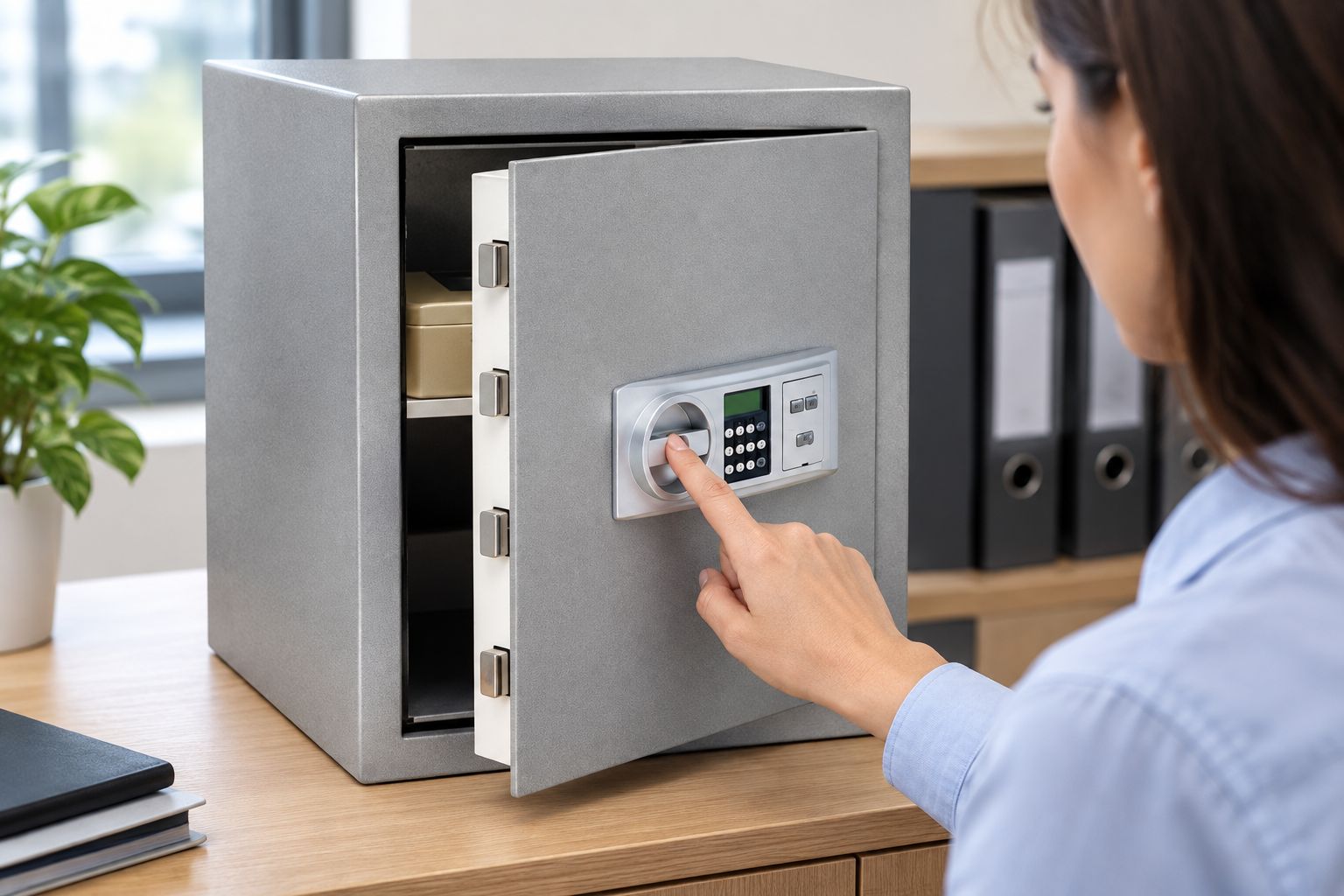
- Power the safe and enter the factory or admin code supplied with the unit.
- Select Add Admin or the equivalent admin-enrolment option on the keypad.
- Place the designated manager's finger flat on the reader for the requested number of scans — most units ask for two to three passes of the same finger.
- Confirm the admin print with a fresh scan outside enrolment mode. Expected result: the safe unlocks on the first try, no code entry required.
Do not skip step 4. An admin print that only half-registers means every staff print added later inherits the same weak read.
Burg Wachter's Karat MT-26-NE-FS electronic fingerprint safe runs this exact admin-then-staff enrolment flow and is a reasonable reference point if your current lock's menu wording differs slightly from the steps above — the logic is the same across most commercial biometric locks sold in Australia in 2026.
Enrol each staff fingerprint
- From admin mode, select Add User or Enrol Fingerprint.
- Choose an open user slot — most commercial biometric safes number slots sequentially (User 1, User 2, and so on).
- Have the staff member place the same finger on the reader for each requested scan, keeping pressure and angle consistent between passes.
- Save the slot, then exit admin mode and have that staff member test the print live, door closed, before moving to the next person. Expected result: the safe unlocks within a second or two on a clean scan.
Repeat this for every staff member on your list, one at a time, testing live between each addition. Enrolling four people back-to-back without testing is the single biggest cause of the "it worked yesterday" call.
Set access schedules and permission tiers
Some commercial biometric locks let you split staff into tiers — an admin tier that can add or remove prints, and a user tier that can only open the safe. Where the model supports it:
- Open the admin menu and select the tier or permission setting for each user slot.
- Assign new hires to the user tier by default. Reserve admin tier for one or two managers only.
- If the lock supports time-based access, set opening hours to match trading hours so the safe rejects valid prints outside business hours. Expected result: a staff-tier print opens the safe during set hours and is refused, not just ignored, outside them.
Keeping the admin list short matters more than most businesses realise. Every admin-tier print is a person who could remove every other staff print, so limit that tier to the people who actually manage the safe.
Add a backup PIN or key for when the reader fails
Run this as a second workflow alongside fingerprint enrolment, not instead of it. Every biometric safe should have a working non-biometric path back in.
- Set or confirm a backup PIN code separate from the admin code, known only to one or two senior staff.
- Store any mechanical override key off the safe itself — a nearby drawer defeats the purpose.
- Test the backup PIN or key once a quarter, not just at installation. Expected result: the backup path opens the safe without touching the fingerprint reader at all.
A CMI Security Key Cabinet is a practical place to store a spare override key for a commercial biometric safe, particularly where more than one manager needs access to it without carrying the key personally.
Troubleshooting
| Problem | Likely cause | Fix |
|---|---|---|
| Print worked at enrolment, now rejected | Finger angle or pressure drifted over weeks of use | Re-enrol the same print rather than adding a second slot for the same person |
| Safe stuck showing "Admin Mode" after adding a user | Admin mode wasn't exited properly after the last enrolment | Power-cycle the unit, then re-enter and exit admin mode cleanly |
| One staff member's print fails only in winter | Cold, dry skin reduces ridge contrast on capacitive readers | Warm the hand briefly before scanning, or re-enrol with slightly firmer pressure |
| Reader unresponsive after a power outage | Battery below the low-power threshold that triggers lockout | Replace batteries immediately — most units warn before full failure, don't wait for the warning to be ignored twice |
| New staff print never registers | Enrolment slot limit reached for the lock model | Remove a departed staff member's print first, then add the new one |
Customize your workflow
Once the base setup is running, most businesses extend it in one of two directions. Retail and hospitality sites with a cash room often pair a biometric lock with a time-delay relock (TDR) feature, similar to what runs on commercial units like the CMI CR5 Commander Safe, so the safe won't reopen for a set window even with a valid print — useful where duress is a real risk.
Offices with a smaller, tighter staff list sometimes go the other way and drop the tiered permissions altogether, treating every enrolled print as equal. Either direction works; the enrolment and testing steps above stay the same regardless of which permission model you land on.


FAQ
What's the best biometric safe for multiple staff members in 2026?
Any commercial biometric lock that supports admin and user tiers works for a shared staff setup. The Burg Wachter Karat MT-26-NE-FS and MT-24-NE-FS both run a tiered admin-then-staff enrolment flow suited to small teams.
How many fingerprints can a biometric safe store?
Enrolment capacity varies by lock model, so check the specific unit's user limit before enrolling a large team. Most commercial biometric safes list this figure in the lock's own documentation rather than the safe's general spec sheet.
Is a biometric safe better than a keypad safe for shared staff access?
Biometric locks remove the need for a shared code that gets written down or shared beyond the intended staff. A keypad safe is simpler to manage but relies on staff discipline to keep the code private.
How do you remove a staff fingerprint from a biometric safe?
Enter admin mode with the master admin fingerprint or code, select the delete or remove-user option, and choose the departing staff member's slot. This should happen the same day someone leaves, not at the next scheduled review.
What happens if the biometric safe's battery dies?
Most units trigger a low-battery warning before the reader stops responding entirely. A tested backup PIN or mechanical override key is the only reliable way in if the battery fails without warning.
Can two staff members open a biometric safe with different fingerprints at different times?
Yes, once each staff member's fingerprint is enrolled in its own user slot. Locks that support time-based access can also restrict which hours each print is valid.
Is biometric access compliant for cash handling businesses in Australia?
Compliance depends on the cash rating and construction of the safe itself, not the lock type. Biometric locking is an access-control feature layered on top of whatever burglary and fire rating the safe carries.
Does cold weather affect fingerprint safe reliability?
Yes — cold, dry skin reduces ridge contrast on capacitive readers and increases rejected scans. Warming the hand briefly before scanning usually resolves it without re-enrolling the print.
One last thing
The most overlooked step in a biometric safe multiple user access setup isn't the enrolment itself — it's the quarterly audit. Businesses that check their enrolled-user list every three months catch old prints from departed staff before they become a security gap; businesses that don't usually find three or four stale prints still active a year later. Put a recurring reminder in whoever manages the safe's calendar now, not after the first staff turnover in 2026.


